






Quick Guide:
The official Netflix platform allows you to download movies for offline watching on iPhone, iPad, Android, Fire tablets, and some Chromebooks. However, you can’t download and watch Netflix offline on macOS and new versions of Windows. If you want to watch movies or shows from Netflix on a computer, you need to use some third-party tools, like MovPilot Netflix Video Downloader on this page for personal and legal use.
Netflix does not currently offer an official method to save videos for offline viewing on Mac. What’s more, since 2024, the offline download feature in the Windows Netflix app has also been discontinued, meaning you can no longer watch Netflix offline on Windows, either. Therefore, the most dependable official option remains downloading on mobile devices for offline watching.
Even so, enjoying Netflix offline is still simple. In this guide, you’ll learn how to watch Netflix offline on any device, including iPhone, Android, Windows, macOS, Chromebook laptop, TV, Game Console, and so on.
Watch Netflix Series & TV Shows Offline on iPhone/Android
It can be easy to watch Netflix offline on your iPhone/iPad (iOS 9.0 or later) and Android (Android 4.4.2 or later), since there is an official Netflix app with a download feature. After you install it from the app store, you can download the available movies/shows on the Netflix app and then watch Netflix offline without the internet.
Note:
Downloaded by the official Netflix app, the videos can be watched on the Netflix app only. You can’t transfer them or edit them. What’s worse, the downloads will become unavailable up to 30 days or even 48 hours after the first playback. You need to re-download them if you still want to watch them offline.
Step 1. After downloading the latest version of the Netflix app, launch it.
Step 2. Search for the target Netflix movie or TV show and tap it. If there is a Download icon shown under the Play icon on the screen, then you can download it.
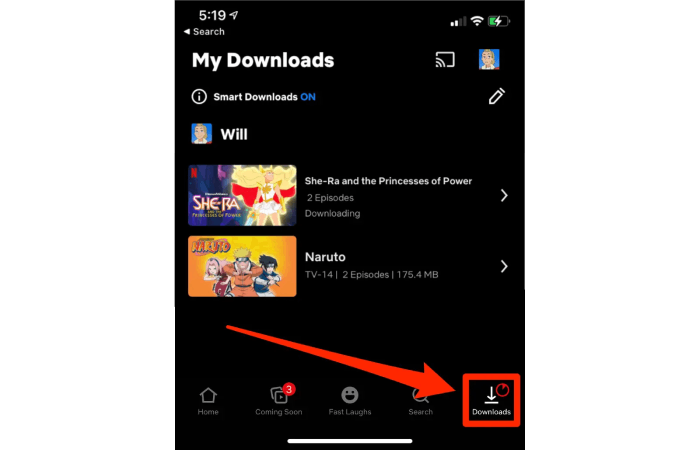
Step 3. After finding the downloadable video, tap the Download button to download Netflix episodes. Once the process is finished, check your video in My Downloads. As long as it is in the validity period, you can watch Netflix downloads offline without Wi-Fi.
Tip:
If you are using an Android device, it’s always recommended to change the download location to your SD card. However, downloading Netflix movies to an SD card may lead to a slow download speed. Click to learn how to download Netflix faster.
Watch Netflix Movies Offline on Windows PC
Also, Netflix officially launched a Windows app for you to download Netflix content on your Windows PC/laptop to watch offline. However, since Netflix has removed the download function in the newest version of their Windows app, you should install the old version of the Netflix app and then download Netflix movies for offline viewing. Below are the detailed steps.
Step 1. Uninstall the currently installed Netflix app on your Windows PC.
Step 2. Open the Microsoft Store, and navigate to Your Profile > Settings. Disable the automatic App Updates.
Step 3. Download the old Netflix v6.99.5 from one of the sources below:
Step 4. Launch Terminal on your Windows PC. Enter the command: Add-AppxPackage .\Downloads\4DF9E0F8.Netflix_6.99.5.0_neutral_~_mcm4njqhnhss8.AppxBundle and run it.
Step 5. Launch the newly installed old version of Netflix app and log in to your account.
Step 6. Click the menu icon (three horizontal lines) and scroll down to find “Available for Download”.
Step 7. Browse the available titles, choose the one you want, and click the download icon to start downloading.
Step 8. After the download is complete, go to “My Downloads” in the menu. You can watch the downloaded content offline anytime, even without an internet connection.

However, it is important to note that there is an expiration period for each Netflix download. It varies from 48 hours to 30 days, depending on whether you started to watch the downloaded Netflix movies offline. So make sure you watch Netflix downloads offline before expiration. For more information, check: Netflix Download Limit: What is it and How to Get Around?
Watch Any Netflix Video Offline on Mac🔥
You may also wonder how to watch Netflix offline on Mac. Since the Netflix website only supports streaming videos and the download feature is exclusive to the Netflix app, you may be upset as no dedicated app is available on Mac. No worries. There is still a workaround for watching Netflix offline on Mac. The method introduced here can help you watch Netflix videos offline on all your devices compatible with MP4 videos.
MovPilot Netflix Video Downloader is an application for Netflix users to download Netflix movies and TV shows in MP4/MKV format with 1080P quality and Dolby surround sound without barriers. With its help, you can download any video on Netflix (including the ones that are not in “Available for Download”) and watch them offline on your Mac or Windows computer, or even transfer them to your mobile devices.
Step 1. Launch the downloader and log in to Netflix
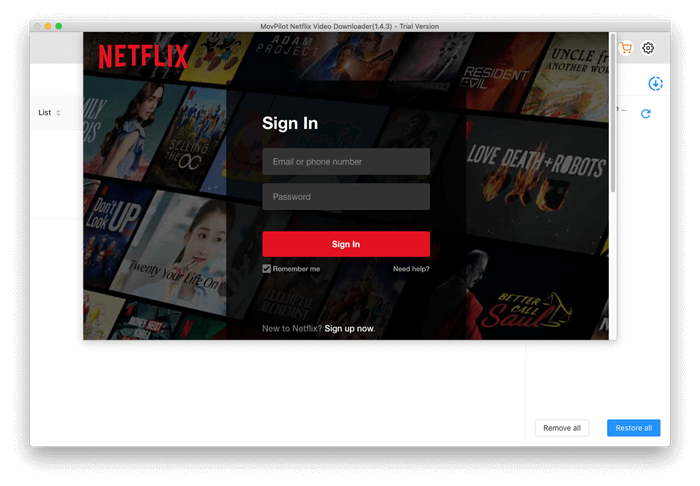
After you launch MovPilot Netflix Video Downloader, you need to log in to Netflix with your account on the pop-up page to ensure this app can access the content of Netflix.
Step 2. Search for Netflix Videos
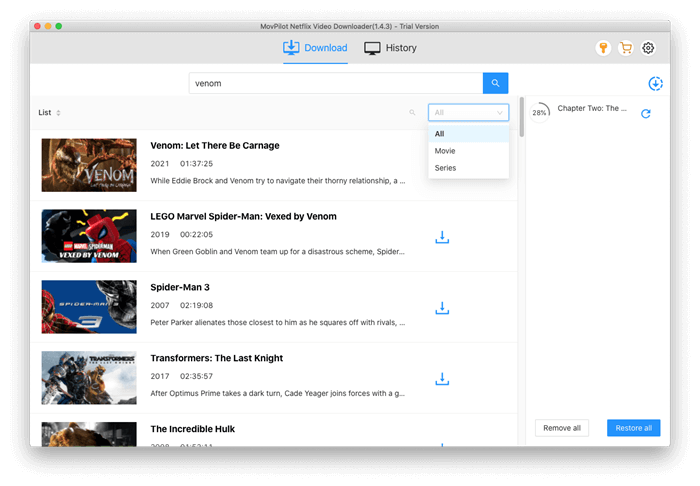
Search the target Netflix movie or TV show by name or copy and paste its URL in the search field.
Step 3. Choose the Video Format, Quality, Subtitle Language
Before downloading the videos, you can preset the output parameters. Hit the gear icon on the top right and you can select the output format, video codec, subtitle type, subtitle languages, and audio languages for the movies or shows you are about to download.
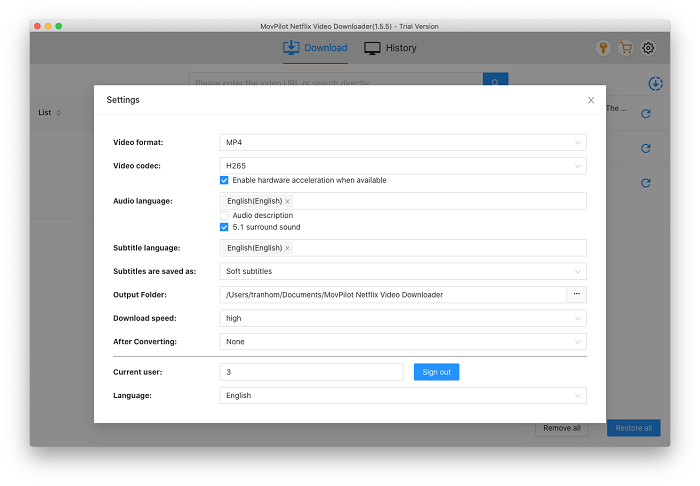
You can select each episode from each season, if any. Or download them all in batches. If you wish to make exceptions for some episodes, you can set them by hitting the settings icon at the end of the search result.
Step 4. Watch Netflix Movies or Shows Offline
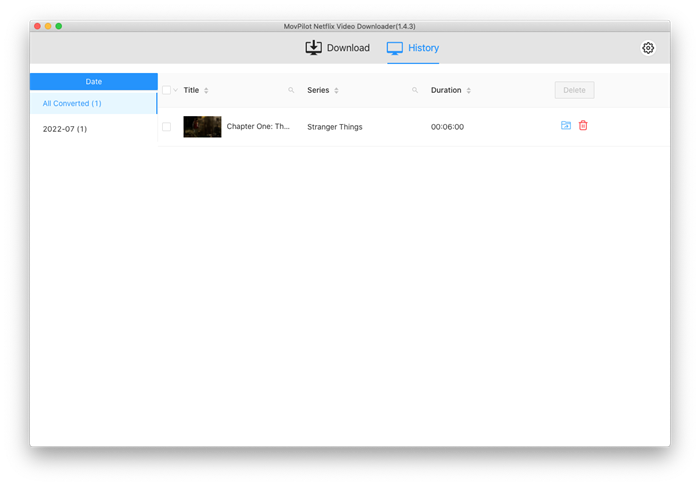
Now, close the settings window and click on the blue download icon on the right side of the movie or TV shows you’d like to watch offline. When the downloading finishes, you can find them from the “History” tab and watch Netflix movies without the internet. If you wish to watch them on your Android or iPad, just transfer them using a USB cable.
Watch Netflix Offline on Chromebook
On Chromebooks that support Android apps, Netflix downloads and offline watching are available. Simply install the Netflix app from the Google Play Store, and you can save movies and shows for offline viewing just as you would on any Android phone or tablet.
NOTE:
If your Chromebook is limited to apps from Google Play only, such as on school or work-managed devices, you can instead use MovPilot Netflix Video Downloader on another computer, then transfer the downloaded files to your Chromebook to watch without an internet connection.
Watch Netflix Episodes Offline on Game Console & Smart TV [Universal Way]
Sometimes, you may prefer to enjoy Netflix offline on your TV, especially if your home internet connection is unstable. Portable devices like the Steam Deck are also great companions for travel, offering a balance between mobility and screen size. This section will walk you through how to extend Netflix’s offline viewing to these devices.
How to Watch Netflix Offline on TV
Streaming Netflix on Apple TV or other smart TVs is simple when Wi-Fi is available, but how can you watch Netflix on a smart TV without internet access? Don’t worry, there are a couple of ways:
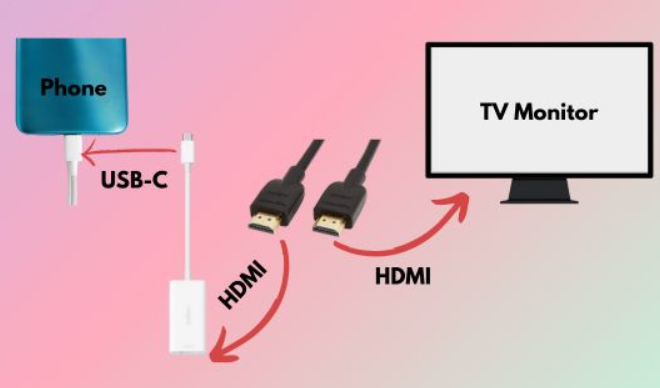
Option 1. Cast Netflix Downloads from Your Phone to TVFirst, download your favorite Netflix shows or movies on an Android or iPhone. Then, connect your phone to the TV using an HDMI cable to mirror the screen. In this way, you can play downloaded Netflix videos offline directly on your TV.
Option 2. Use MovPilot Netflix Video Downloader and Transfer Videos to TVBecause Netflix’s built-in downloads are encrypted, they can’t be freely moved between devices. To solve this, you can use MovPilot Netflix Video Downloader to save DRM-free Netflix videos in formats that your TV supports. After downloading, copy the files to a USB stick and plug it into your smart TV for offline playback. Alternatively, you can cast or mirror the saved videos wirelessly via Bluetooth.
For more details, you can learn from this post: How to Get Netflix on TV for Better Watching
How to Watch Netflix Offline Without Internet on Game Consoles
Although streaming Netflix on consoles like PS4, Xbox, or Steam Deck is straightforward, watching offline requires some preparation. Here’s what you need to do:
Step 1. Download Netflix videos in MP4 or MKV format using MovPilot Netflix Video Downloader.
Step 2. Transfer the saved files to a USB drive or SD card.
Step 3. Insert the drive into your game console and start watching without needing Wi-Fi.
Related Articles:
How to Watch Netflix on Nintendo Switch
How to Watch Netflix Movies and Shows on PS4/PS5
How to Get and Watch Netflix on Xbox One
FAQs on Netflix Video Offline Viewing
Q1. How Many Netflix Episodes Can I Keep for Offline Viewing?
The maximum number of downloads on Netflix is 100 on one single device. If you don’t have other movies downloaded on your device, you can download 100 episodes on Netflix.
Q2. Why Can’t I Download Episodes on Netflix?
Netflix officially limited the download feature as follows:
- Presumably, because the episodes themselves have no access to download on Netflix.
- If the previous episodes could be downloaded, but not for a particular one currently, probably your device has reached the maximum of 100 downloads, or the video has been downloaded multiple times.
- Within a year, a specific video could be downloaded for a limited time.
- You should be aware that the new ad-tier subscription plan comes with no downloading feature.
You can click the link to learn how to fix these download problems.
Q3. How Long Do Netflix Downloads Last?
Typically, the viewing period on Netflix downloads ranges from 7 days to 30 days. And this period will shrink to only 48 hours after you watch them. You have to renew them if they are still available for download. (Some movies will be removed from the Netflix library occasionally. If you have downloaded it, it will also be directly removed.)
If you want to break the barrier, turn directly to MovPilot Netflix Video Downloader, which brings you innumerable times to download episodes of MP4 or MKV format without out-of-date threats. Then you can feel free to keep Netflix shows forever and watch them without the internet.
Q4. Can I Download a Netflix Movie on My MacBook?
No, Netflix does not provide an official way to download movies directly to a MacBook, which means the Netflix app for macOS does not support offline viewing. To watch offline, you can either use mobile devices like an iPhone or an iPad, or turn to third-party tools such as MovPilot Netflix Video Downloader.
Q5. Can I Download Netflix Video and Watch Offline After My Subscription Ends?
No, you cannot watch Netflix downloads once your subscription ends. All downloaded movies and shows are tied to an active account and will expire when your membership is canceled. To keep videos permanently for offline viewing, you’ll need a third-party tool like MovPilot Netflix Video Downloader.
Q6. What’s Netflix’s “Downloads for You”?
“Downloads for You” is a Netflix feature that automatically saves recommended movies and shows to your device based on your viewing history. It helps you discover content even without searching. You can customize storage limits, and the downloaded titles are available for offline viewing anytime while your subscription is active.
Conclusion
Netflix’s offline mode is a handy feature for many users. Through the Netflix app, you can download titles and watch them later on supported devices such as iPhones, iPads, Android smartphones, tablets, and Chromebooks.
For devices that don’t support this function, MovPilot Netflix Video Downloader offers a solution. With it, you can save Netflix videos for offline viewing on Mac, Windows PC, or virtually any device. Give it a try and enjoy a more flexible Netflix experience!