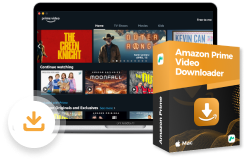






Amazon provides various premium video content on the Prime Video app, but the video content can only be viewed on compatible devices. You may be looking for a workable method to rip Amazon Prime videos to common video files for flexible playback, and even editing & burning.
You’re in the right place. This article will introduce the best way ever to rip Amazon Prime video to high-quality MP4, using the most reliable Amazon video ripper. Read on, and use it to keep Amazon videos forever!

Way 1. Rip Amazon Prime Videos to MP4 with MovPilot
MovPilot Amazon Prime Video Downloader must be the best recommendation for ripping Amazon Prime videos. This software offers the most widely-used formats such as MP4 and MKV to download Amazon Prime movies or shows to computer in 1080P quality. It can remove the protection of each video; thus, you can flexibly transfer the downloaded Prime videos to any device and play them whenever you want.
👍 Key Features of this Prime Video Downloader:
- Convert the DRM-protected Amazon Prime videos to plain video files
- Up to 5X fast speed to rip Amazon Prime videos on Windows/Mac
- Saves subtitles as soft subtitles, hard subtitles, and external subtitles
- Preserves the original multilingual audio tracks and subtitles
- Supports Dolby 5.1 surround sound while ripping Prime videos

Here comes how to rip Amazon Prime videos using MovPilot:
Step 1. Install MovPilot Amazon Prime Video Downloader. Launch it and log in to your Amazon Prime account.
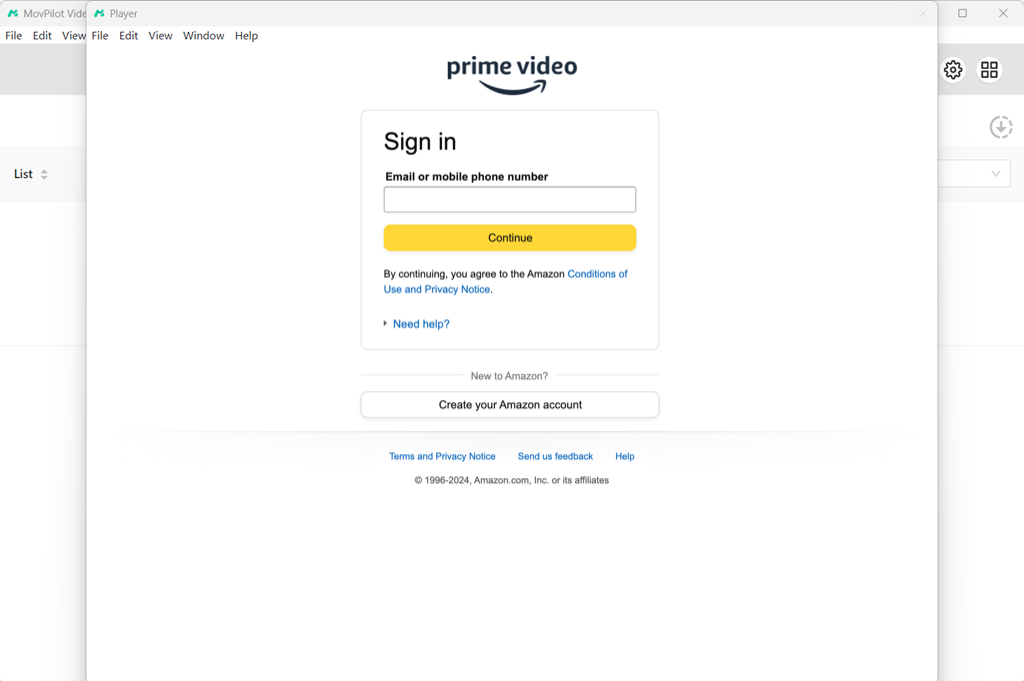
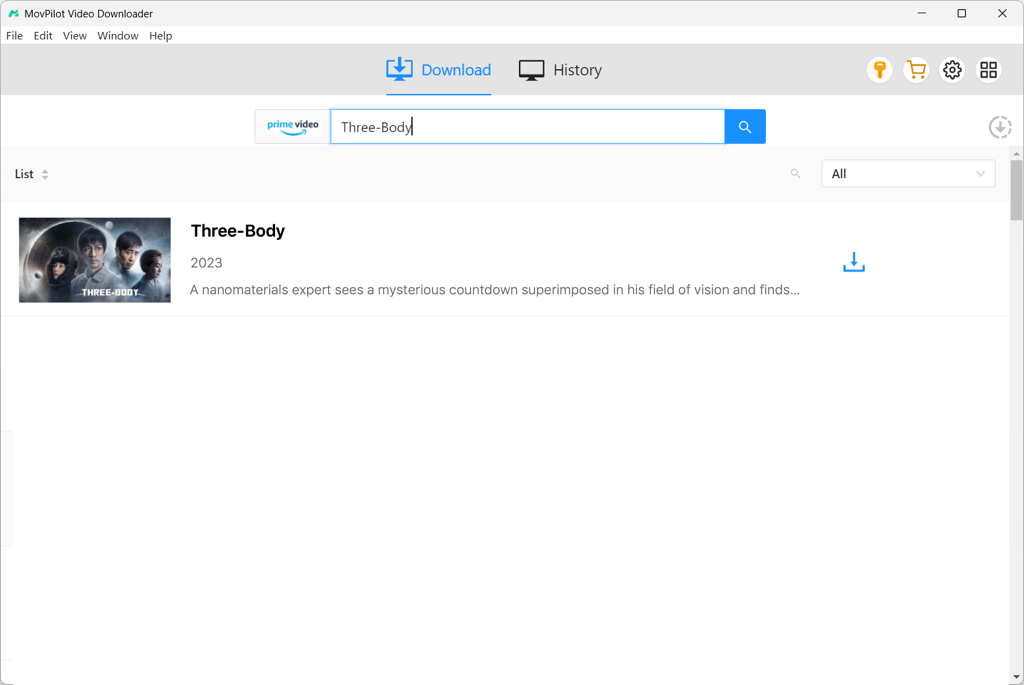
Step 2. Search for Amazon Prime Videos to rip by searching its name or copying and pasting its link.
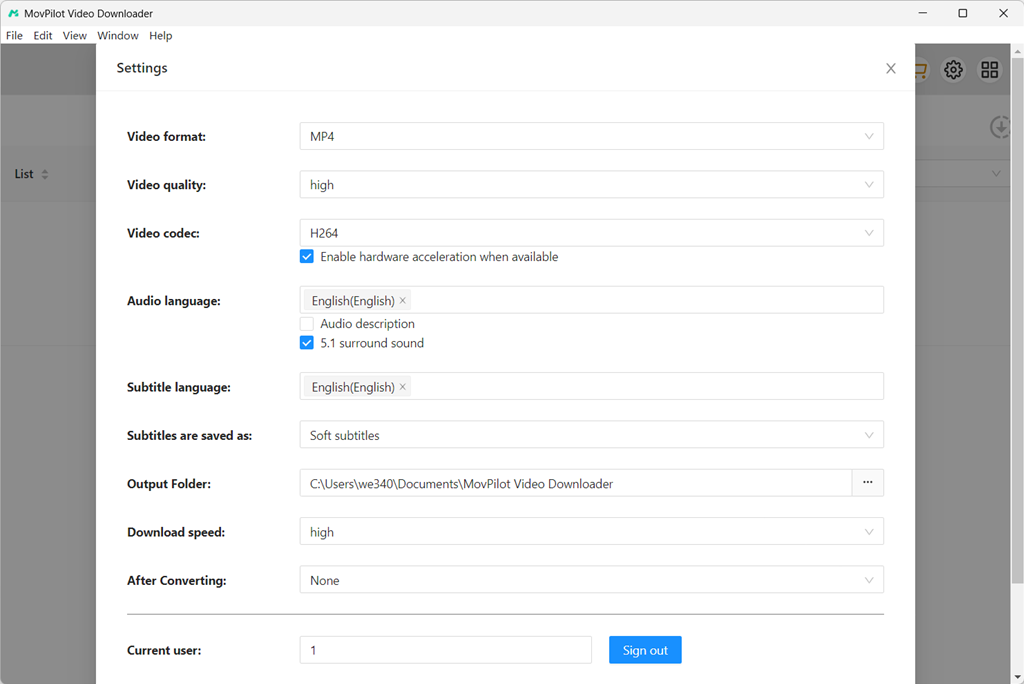
Step 3. Now, you can go to the top-right corner of the interface and click the setting icon to set the “Video Format”, and “Video Codec”, and also select language for both the “Audio” and “Subtitle” based on your needs for the Amazon Prime videos you are going to rip.
After that, press the download button provided for each Amazon Prime video and download them offline.
When the video result contains more than one video, you will need to enter the list to select those you want to rip offline one by one.
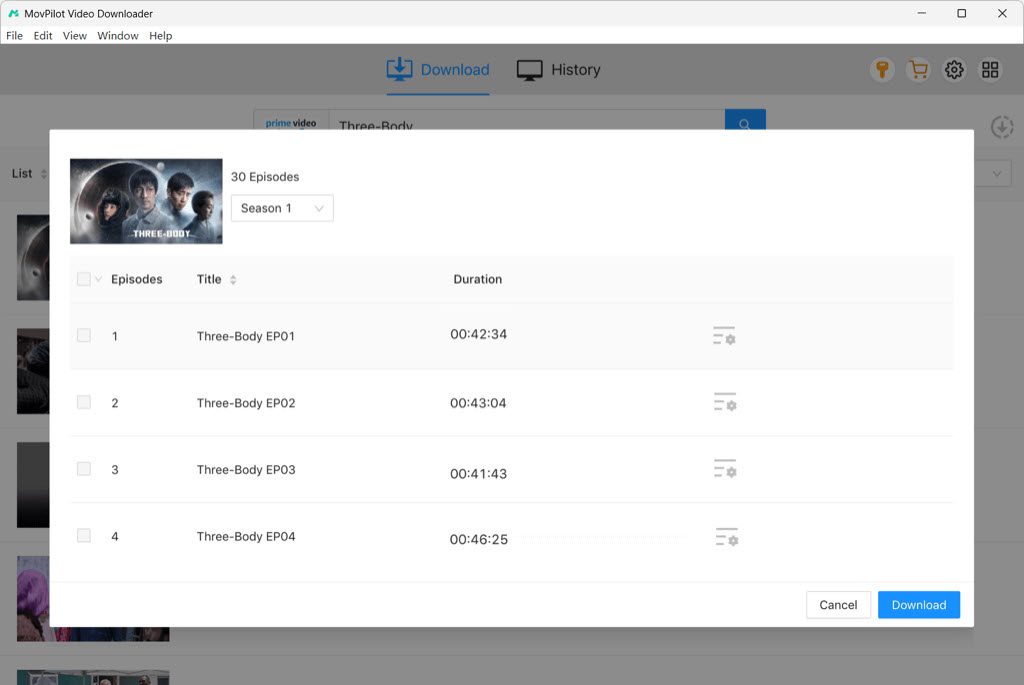
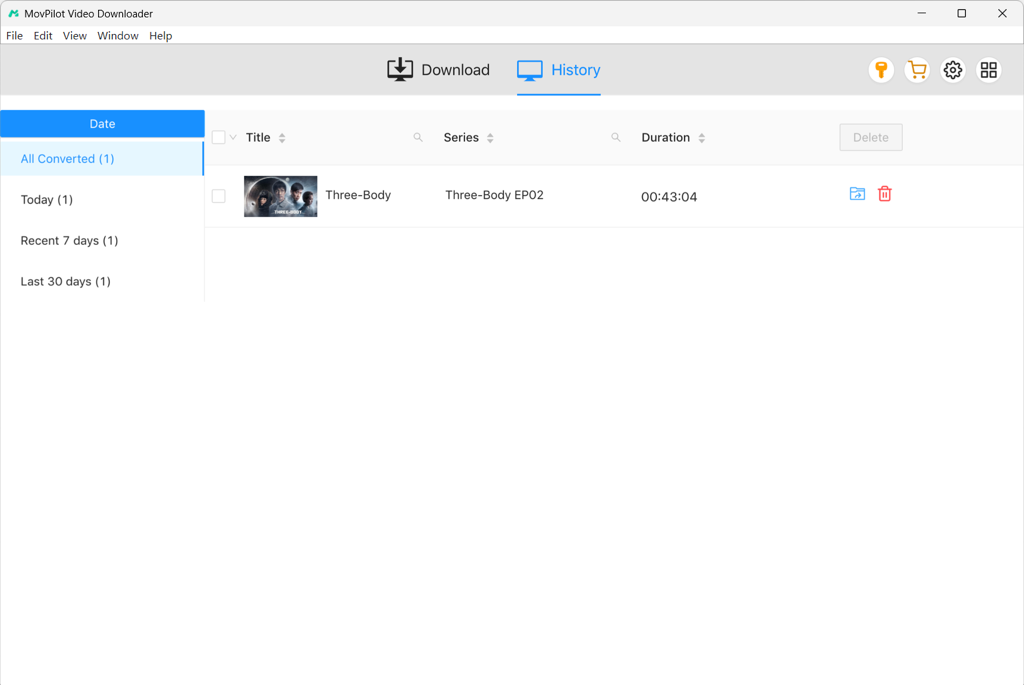
Step 4. You can continuously check the downloading process on the screen. Once it completes, you can check your ripped Amazon Prime videos in History and view them in your system folder. Now you can easily watch them or even save them to your device such as USB or external hard drive forever.
Bonus: Full Video Walkthrough
Way 2. Rip Movies from Amazon Prime via FonePaw Screen Recorder
Using an Amazon Prime Video ripper is an easy way to rip movies from Prime Video. But if you only want to rip a short clip instead of downloading full-length movies or TV episodes, using a tool to record movies on Amazon Prime might be a more convenient option.
As Prime videos are DRM-protected, most recorders may record a black screen with only sounds when you try to record Amazon Prime videos. Fortunately, we have found a viable method. You can stream Prime Video via the Firefox browser and then record it with FonePaw Screen Recorder. Both the image and audio will be recorded, and you can output the ripped video in MP4/MKV or other formats.
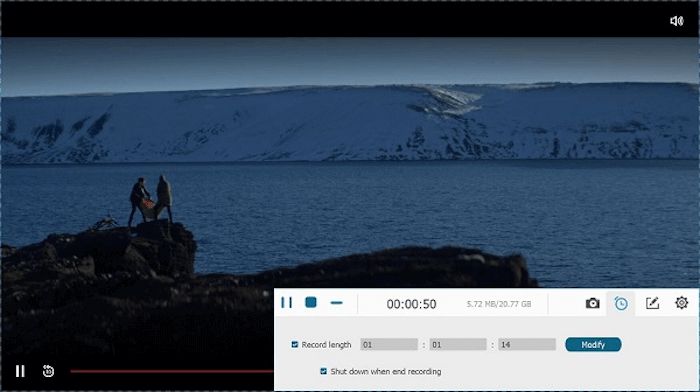
- Launch FonePaw Screen Recorder, and choose “Video Recorder”.
- Customize the recording area. To capture Amazon Prime movies audio, turn on “Internal Sound”, adjust its volume to your preferences, and toggle off “Microphone”.
- Stream your favorite Amazon Prime movie on the Firefox browser, then click “REC” to start ripping Amazon Prime video.
- To stop ripping Amazon Prime video, simply click the square icon.
📌 Related Reading:
Way 3. Rip Amazon Prime Videos Using PlayOn Streaming Recorder
PlayOn Streaming Recorder not only records Amazon Prime Video titles but also helps you skip those annoying ads. It captures the video in real-time, bypassing interruptions to ensure uninterrupted recording. By recording content, PlayOn avoids DRM protection, letting you save videos for offline viewing with ease.
PlayOn offers video recording up to Full HD 1080p resolution to maintain a clear and smooth playback experience. The recorded videos are stored in MP4 format, ensuring broad compatibility so that almost any device can play the video, from smartphones to smart TVs.
Thanks to its schedule feature, cloud recording, and support for numerous streaming services, PlayOn will make ripping Amazon Prime Video content an easy and legal affair.
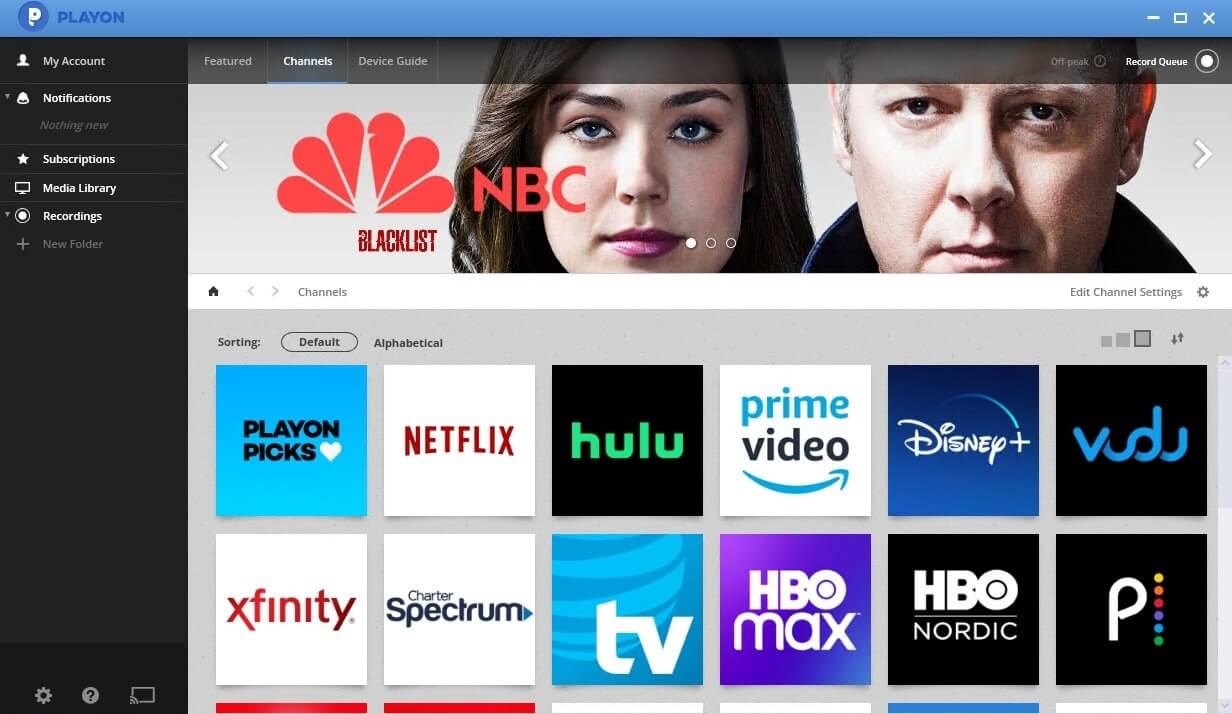
Follow the steps below to rip Amazon Prime Video content with PlayOn:
- Download and install the PlayOn software on your PC.
- Open PlayOn and log into your Amazon Prime Video account.
- Choose the Amazon Prime video you want to record.
- Click the Record button to begin capturing the video.
- Once the video finishes, it will automatically be saved in MP4 format, ready for offline viewing.
Way 4. Rip Amazon Prime Video on Android/iPhone
Another way to rip from Amazon Prime Video is by using the Rave app on a mobile device. Rave is a social viewing application through which users can stream from major platforms such as Amazon Prime Video, Netflix, YouTube, and others.
With Rave, you can log into your Amazon account and watch videos with friends simultaneously. Since the video playback is inside the app, you may wish to use the built-in screen recorder of your phone to capture the video playback. This makes it an easy option to download short clips locally on both Android and iOS platforms. Here are the steps to rip Amazon Prime Video with Rave:
Step 1. Download and install the Rave app from the official site.
Step 2. Open Rave and sign in with your Amazon Prime Video account.
Step 3. Choose the video you want to watch and start playing it.
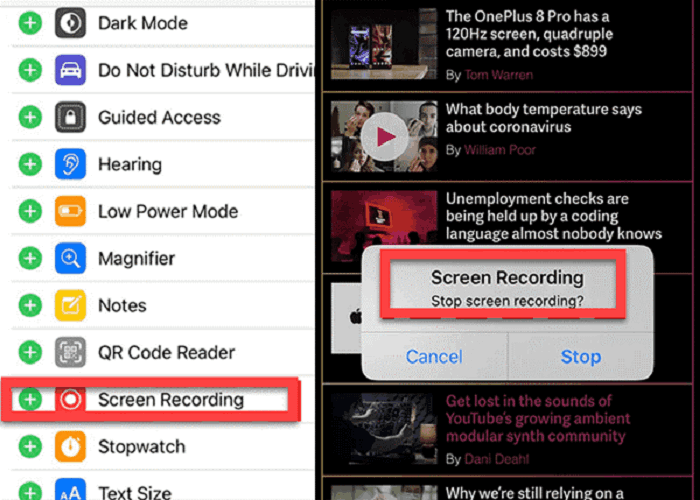
Step 4. Enable your phone’s built-in screen recorder.
Step 5. Once the clip is recorded, stop the recording. And the video will be saved to your device’s storage.
FAQ: Can I Rip Amazon Prime Videos from Prime Video App Directly?
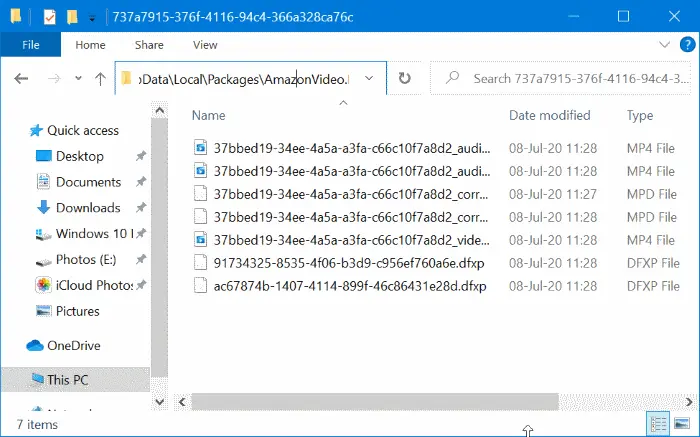
Theoretically not. Because Amazon strictly restricts users’ access to downloaded files in order to protect copyright. The downloaded Prime videos are stored in hidden folders. To locate the downloaded files, you should first configure the system File Explorer to show hidden items, then you can find your downloads via the path:
C:\Users\UserName\AppData\Local\Packages\AmazonVideo.PrimeVideo_pwbj9vvecjh7j\ LocalState\Downloads
Read Also: Where Are Amazon Prime Video Downloads Stored [Updated]
💡 Note:
The videos you download via the Prime Video app can only be read by the Prime Video app. When you try to open them with media players, nothing happens. In this case, you’ll need third-party software like MovPilot Amazon Prime Video Downloader mentioned above to break the limits to rip Amazon Prime content locally.
Moreover, there are still many download limits of Amazon Prime, such as the 48-hour validity period of watched downloads for profitability reasons. So you may need a third-party ripper like MovPilot Amazon Prime Video Downloader to help you rip Prime videos quickly and conveniently.
Final Words
To rip Amazon Prime videos to common video files for offline playback, you only need reliable software like MovPilot Amazon Prime Video Downloader to help. You will get the original video outputs for enjoying offline with both the high image quality and the lossless audio/subtitle effects. So if you are still wondering about a way to rip videos from Amazon Prime with high quality, just try MovPilot Amazon Prime Video Downloader.
MovPilot Amazon Prime Video Downloader
Download Amazon Prime Movies and Shows to Watch Offline Easily!