






When you want to record a short snippet from a Netflix movie and send it to a bud, you might frequently encounter a frustrating issue: the recorded video shows a black screen, with only audio and subtitles playing. So, is there a way to screen record Netflix without a black screen? The answer is definitely YES.
In the following part of this article, you will get workable methods to screen record Netflix without a black screen on PC/Mac/iPhone/Android. Just read on!
Is Screen Recording Allowed on Netflix?
No. Netflix’s official website does not allow users to rip Netflix videos or screenshot Netflix. They use DRM technology to protect copyrighted content and prevent unauthorized copying and distribution of the content, which is precisely why a black screen typically appears when you attempt to record or capture images from Netflix.
If you want to screen record Netflix without a black screen, you may need to do some special settings on your browser or turn to professional third-party tools.
How to Record Netflix Without Black Screen on PC/Mac
Based on the limits added by Netflix’s official mentioned above, you’ll need to make some settings on your browser and turn to one of the best Netflix recorders to make sure you screen record Netflix without a black screen.
Before You Start: Turn off Hardware Acceleration in Your Browser
If you want to screen record Netflix without a black screen in your browser, you should turn off the hardware acceleration feature in your browser first. By doing this, the video rendering path shifts from the GPU to the CPU, which bypasses Netflix’s hardware-level DRM detection. Then, you can use a professional screen recording tool to successfully capture the video.
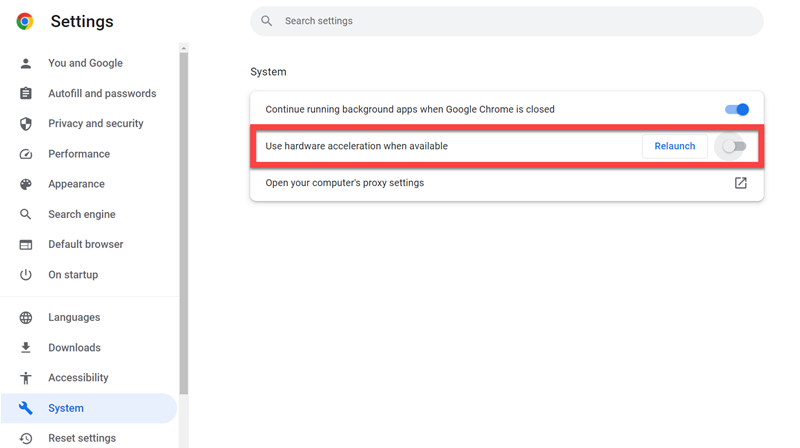
For Chrome:
- Click the three-dot button in the top right corner, then click Settings.
- Click System.
- If the Hardware Acceleration feature is on, toggle it off.
For Firefox:
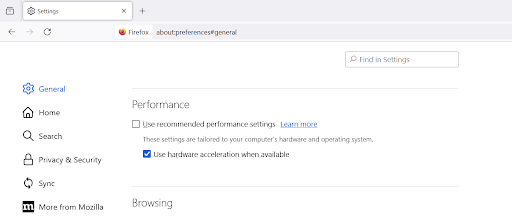
- Open Firefox and click the “three-horizontal-line” icon in the upper right corner.
- Select “Settings” and then choose “General” from the left panel.
- Scroll down to the “Performance” section. Uncheck the box for “Use recommended performance settings”.
- Then turn off the “Use hardware acceleration when available” option.
LibreWolf is an open-source browser project based on Mozilla Firefox. Since it prioritizes user freedom, it disables DRM by default. Therefore, if you use it to watch Netflix, you can directly screen record without encountering the black screen issue.
For Edge:
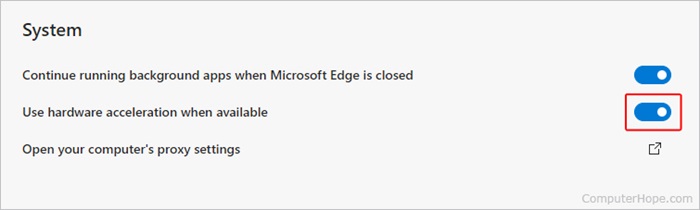
- Open the Microsoft Edge browser and click the “three-dot” button in the top right corner.
- Select “Settings”. On the left side menu, click “System and performance.”
- Find the “Use hardware acceleration when available” option and slide the toggle to the left to turn it off.
How to Screen Record Netflix on Windows PC/MacBook
FonePaw Screen Recorder is an excellent screen recorder software for ripping Netflix movies and TV shows. It can screen record Netflix titles in various video or audio formats while maintaining high quality, which fits all your needs.
Follow the steps below to screen record Netflix without black screen:
Step 1. Get FonePaw Screen Recorder Ready
Download, install, and open FonePaw Screen Recorder on your Windows computer/iMac. On the main interface, click Video Recorder.
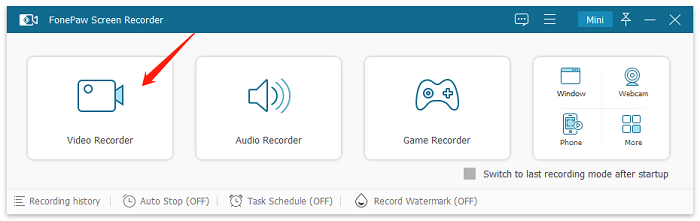
Step 2. Set Up FonePaw Screen Recorder
On the recording page, click on the arrow-down button in the Display section and select Full Screen. Remember to turn on System Sound and turn off your microphone.
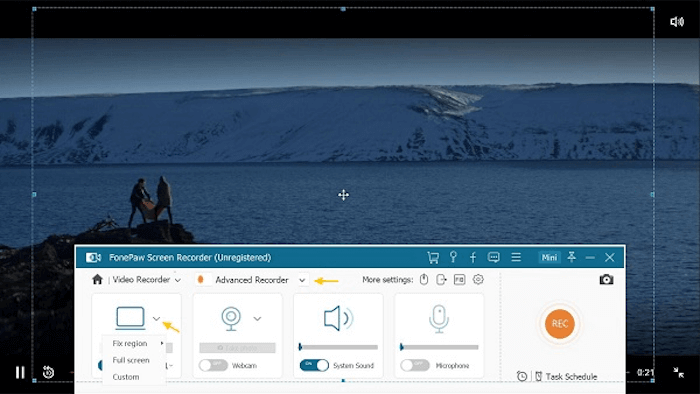
Step 3. Record Netflix Video via FonePaw
Play your desired Netflix video in full screen, then click the REC button to screen record Netflix movies. Once finished, click “Stop”, and then you can check or preview your Netflix recordings on the app.
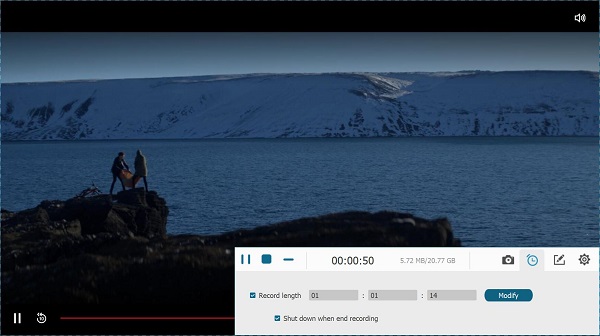
How to Screen Record Netflix on iPhone/Android
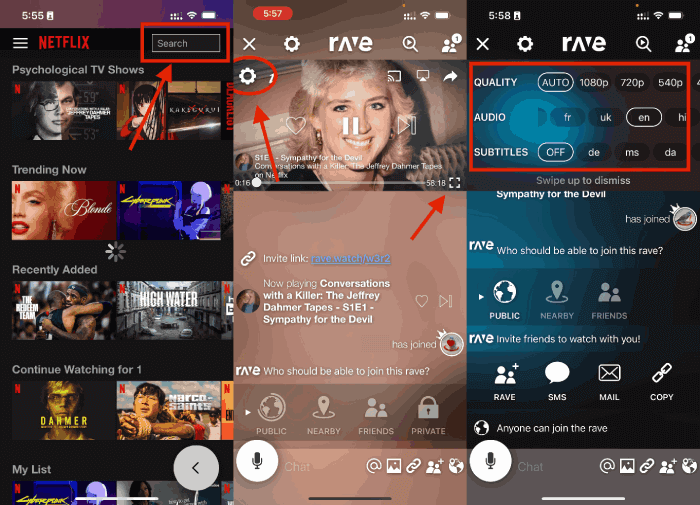
To screen record Netflix on iPhone/Android without black screen, use the Rave app. It is typically used to stream Netflix with friends, bypassing copyright restrictions, which can help you screen record Netflix on phone without black screen. Below are the steps.
Step 1. Sign in to Netflix in Rave. Click on the button in the bottom left corner of the screen, then click on Netflix and sign in on the pop-up page.
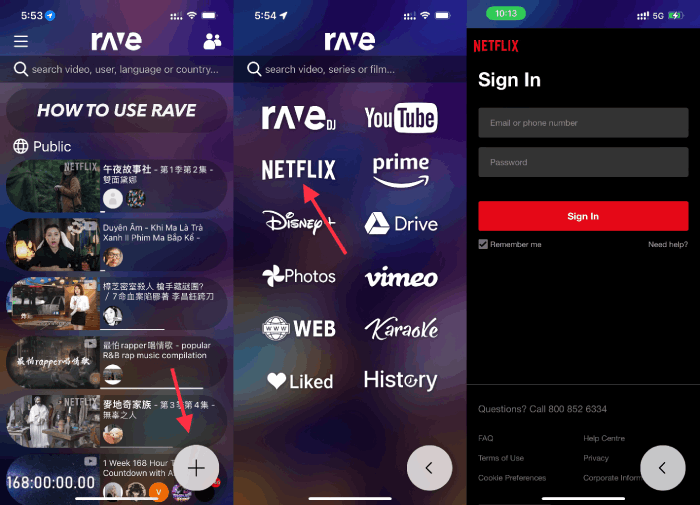
Step 2. Search for the Netflix video you want and Start Recording. Find the video you want and play it in full screen, then screen record Netflix movies with your phone’s screen recording function. The recorded video will be saved to your phone album.
How to Screen Record Netflix on TV
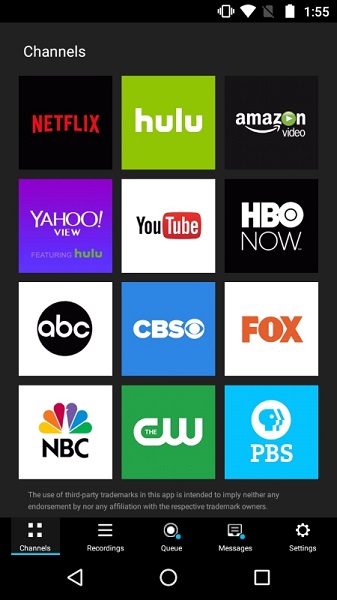
Due to Netflix’s strong DRM protection, smart TVs don’t support direct screen recording of Netflix content. Unlike on a computer, you can’t rely on third-party apps or screen recorders to bypass this limitation. However, don’t be discouraged—there’s a smart workaround. If your goal is to enjoy Netflix on a bigger screen with better viewing quality, you can use PlayOn Cloud for Android TV to sync videos recorded on your other devices directly to your TV.
PlayOn Cloud allows you to record streaming shows and movies from top platforms like Netflix, Hulu, Amazon, Disney+, and more. Its biggest advantage is that it supports sharing recorded content over your home network.
This means you can watch the recordings seamlessly across different devices such as smartphones, tablets, Roku, Chromecast, Fire TV, and more. This way, you can enjoy the full experience of screen-recorded Netflix videos on a big screen, without any technical hassles.
It’s simple to get started following the steps below.
Step 1. Set up your Android TV box (Tivo Stream 4k, Mi Box, JetStream, or NVIDIA Shield TV are recommended).
Step 2. Download and install the app on your Android TV
Step 3. Install the app on your smartphone or tablet, and begin recording your favorite streaming content. and record away. You can also add extra USB storage to your Android TV if needed.
Step 4. Open the PlayOn Cloud app on your Android TV and link it to your PlayOn Cloud account. Once connected, you’ll be able to access and watch all your recorded videos on your TV.
Forget Screen Recording! Download Netflix Videos as MP4 Instead
If you’ve ever tried screen recording, you’ll know how time-consuming and challenging it is to record a full-length, high-quality video. So, while workable, the above methods are more suitable for getting short recording clips of Netflix videos. If you’re looking to save a movie that runs for several hours or an entire season of a TV series and are concerned about the image quality of the video, we recommend a much quicker and easier way: download the entire Netflix video.
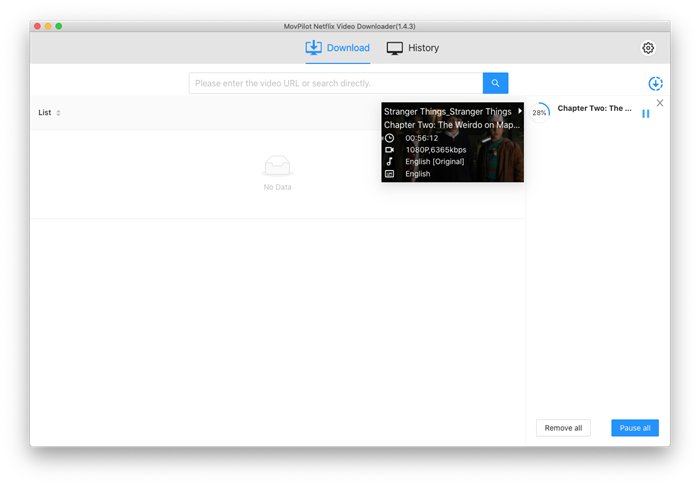
Here we recommend MovPilot Netflix Video Downloader, which can help you to download any Netflix movie and TV show with any Netflix plan for offline viewing. MovPilot converts Netflix movies and shows to vivid 1080P(FHD) MP4/MKV, and keeps the downloads forever on your hard drive, with no more expiration.
Here is how to download Netflix movies to MP4:
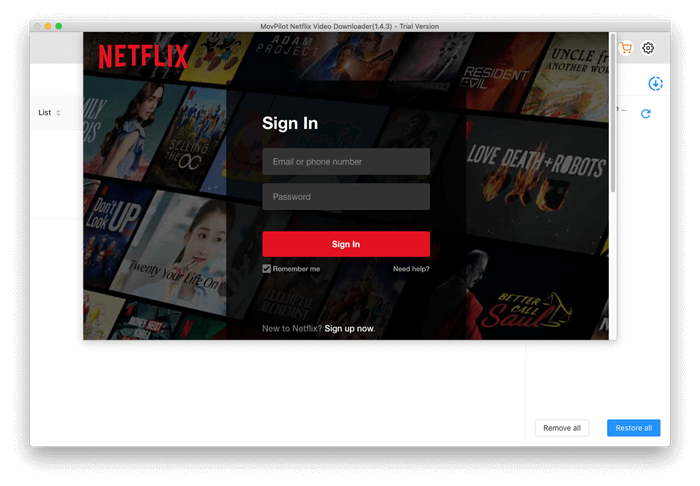
Step 1. Log in to Netflix in MovPilot Video Downloader.
Step 2. Search for Netflix movies and shows you want. You can also paste the Netflix video URL to the search box directly.
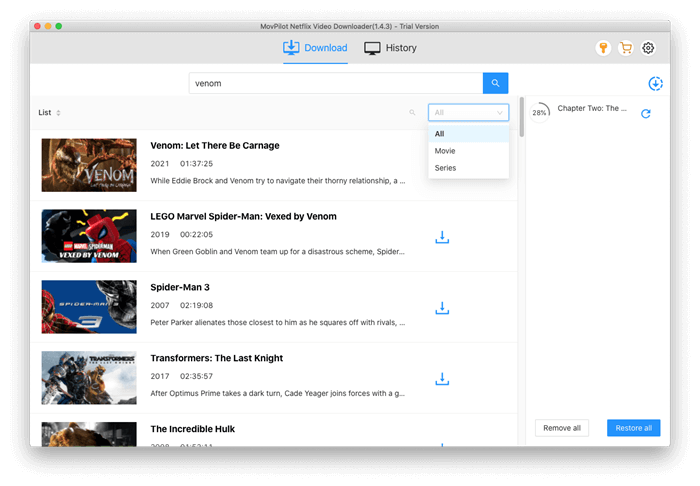
Step 3. Start downloading and then enjoy the movie.
FAQs About Screen Recording Netflix
Is It Illegal to Screen Record Netflix?
In general, streaming services like Netflix have terms of service that prohibit unauthorized reproduction or distribution of their content. Screen recording Netflix without permission for profit could potentially violate these terms and may infringe on copyright laws. But as long as you only screen record Netflix on Mac/PC for offline viewing or sharing with friends, it’s legal.
Can I Record Netflix on DVR?
No, you cannot record Netflix content using a DVR. Netflix has implemented digital rights management (DRM) technologies that prevent the recording or downloading of their streaming content. The purpose of these measures is to protect the rights of content owners and ensure that the content is only accessed through authorized channels.
But you can try recording Netflix with OBS, etc. This desktop Netflix recorder can help you get rid of the restrictions.
Can Netflix Websites Detect Screen Recording?
Yes. Most everyday websites won’t identify if you are recording your screen or taking screenshots. However, streaming platforms like Netflix and Hulu employ DRM to prevent unauthorized recording and downloading, so they are able to detect if you’re trying to record their content.
Conclusion
Screen recording and saving Netflix videos locally is in high demand. All the methods mentioned in the article can meet this need. While screen recording will result in you not being able to use your device until the movie has finished playing, directly downloading Netflix movies and shows through MovPilot Netflix Video Downloader can help you save time and get better picture quality.
MovPilot Netflix Video Downloader
Download Netflix Movies and Shows to Watch Offline Easily!
Screen recorder can’t record all Netflix movies, and some movies will black screen while recording. This is a troublesome thing……
You can avoid black screens by using our software.
I had almost given up on screen recording Netflix without a black screen until I stumbled upon this article. Turning off hardware acceleration in my browser and using FonePaw Screen Recorder on my Windows PC did the trick. However, if you prefer an even easier way to capture Netflix content, I’d recommend checking out MovPilot Netflix Video Downloader for hassle-free downloads.
It’s always a pleasure serving you. Your feedback is incredibly valuable to us.
This article is a lifesaver for Netflix enthusiasts like me who want to screen record without the annoying black screen. The instructions for both Windows and Mac are clear and easy to follow. FonePaw Screen Recorder on Windows works exceptionally well, but if you’re looking for a one-stop solution, you might want to explore MovPilot Netflix Video Downloader for a seamless experience.
Our team will be thrilled to read what you wrote. Thanks for your lovely note.
I used to struggle with the black screen problem when trying to screen record Netflix, but this article provided me with the perfect solution. Turning off hardware acceleration in my browser and using FonePaw Screen Recorder on Windows worked wonders. However, for those who want the convenience of downloading Netflix content, MovPilot Netflix Video Downloader is a fantastic option to consider.
We are honored to have received your 5-star review. Your feedback is greatly appreciated.
This article is a must-read for anyone who wants to screen record Netflix without the black screen issue. The guides for both Windows and Mac are comprehensive and easy to follow. FonePaw Screen Recorder for Windows is a fantastic recommendation, and it works like a charm. But if you’re looking for an alternative, MovPilot Netflix Video Downloader offers a straightforward way to download Netflix content with ease.
Thanks for your positive comments! We’re grateful for the trust you’ve placed in us.
This article provides practical solutions to the Netflix screen recording issue, and it’s been a lifesaver for me. I’ve encountered the black screen problem before, but now I know how to record Netflix content without it. The steps and recommendations in the article are very clear and have been a great help.
Thanks for the awesome review, Gianna! We work hard to meet expectations like yours, and we’re happy to hear we hit the mark for you.
As a devoted Netflix user, I’ve always looked for ways to record their content in high quality without the black screen problem. This article offers several methods, including using FonePaw Screen Recorder and MovPilot Netflix Video Downloader. I find these suggestions to be very helpful in enhancing my Netflix experience.
Your satisfaction is our priority, and your review reaffirms the hard work we put in every day. Thank you for sharing.
This article goes into great detail about how to solve the black screen issue when recording Netflix. I’ve struggled with this problem before, but now I understand the reasons behind it and how to avoid it. MovPilot Netflix Video Downloader, mentioned in the article, seems like a promising tool that I plan to try.
Your positive feedback made our day! Thank you for sharing your experience with us.
Being a Netflix enthusiast, I’m always on the lookout for ways to record their content effectively without encountering the black screen issue. This article offers solutions, such as disabling hardware acceleration and using FonePaw Screen Recorder. Additionally, I learned about MovPilot Netflix Video Downloader, which appears to be a convenient option.
Customer satisfaction is our top priority, and it’s customers like you that make our job wonderful.
I’m thrilled to have come across this article because I’ve been searching for methods to record Netflix without the black screen problem. The article provides comprehensive insights and steps, making it easy for me to understand the root causes of the issue. Although I hadn’t heard of MovPilot Netflix Video Downloader before, I’m now interested in giving it a try.
We are honored to have received your 5-star review. Your feedback is greatly appreciated.
As a Netflix user, I’ve been exploring ways to record their content without running into the black screen issue. This article offers solutions, including turning off hardware acceleration and using FonePaw Screen Recorder. I also learned about MovPilot Netflix Video Downloader, which seems very convenient for enhancing my Netflix experience.
We’re grateful for your kind words and look forward to serving you again.