






“Does anyone know how to download Disney+ videos to MKV? I plan to cancel my subscription, but I have no idea how to back up my favorite movies and shows.”
If you have a similar question, you are in the right place! MKV is a popular format for backing up Disney+ movies and shows as it preserves multiple audio tracks, subtitles, and lossless quality. However, due to DRM protection, downloading videos from Disney+ to MKV can be challenging.
Don’t worry! This article will show you step by step how to convert videos from Disney Plus to MKV without losing quality or subtitles, ensuring full control of your media library. Read on for the full details!
Best Disney Plus to MKV Converter – MovPilot Disney Plus Video Downloader
To successfully download Disney+ videos in MKV format, the very first step is to use a professional tool that can bypass DRM protection. Luckily, that’s exactly where MovPilot Disney Plus Video Downloader comes in!
Available for both Windows and Mac, MovPilot is equipped with advanced DRM removal technology that helps you handle every task with ease. Even better, it integrates a powerful web browser, allowing you to search and download movies, shows, and original series from Disney Plus directly to MKV, all in one place, without the need for extra plugins or software.
When it comes to output quality, you can rest assured. This Disney Plus to MKV converter ensures your downloads retain the original video quality, multiple audio tracks, subtitles, and even Dolby Atmos 5.1 surround sound. Whether you transfer your MKV Disney+ downloads to an external hard drive, a TV, or other devices, you will always enjoy a premium viewing experience.
Why Choose MovPilot Disney Plus Video Downloader?
- Built-in Disney+ Browser: Access the Disney+ library directly from MovPilot, without switching to the official website or app, greatly simplifying the initial steps to convert Disney Plus videos to MKV.
- Higher Download Efficiency: Support simultaneous batch download of entire seasons or multiple movies, reaching up to 5X faster than the official app.
- High-Quality MKV Output: Save Disney Plus movies as HD MKV files while keeping all original audio tracks and subtitles for a complete viewing experience.
- Flexible Subtitle Options: Soft, hard, and external subtitles are available, giving you complete control over how you manage Disney subtitles.
- Support for H.265 Encoding: Preserve original video metadata, including title, cover, cast, and video codec, for easy organization and collection.
- MP4 Output Option: In addition to MKV, you can also export Disney+ videos in MP4 format for seamless playback on various devices.
With these powerful features, MovPilot is undoubtedly one of the best Disney Plus video downloaders available on the market. Whether you want to save your favorite Marvel, Star Wars, Pixar, or Disney Princess collections from Disney Plus in MKV format, MovPilot has you fully covered.
Next, let’s walk through how to use MovPilot to download Disney Plus videos to MKV without quality loss.
How to Convert and Download Disney+ Videos to MKV Without Losing Quality
With MovPilot Disney Plus Video Downloader, you can quickly download Disney Plus to MKV in just 4 simple steps. This tutorial takes the Windows version as an example. If you are using macOS, please check this detailed guide to download Disney Plus movies to MKV on Mac for the corresponding steps.
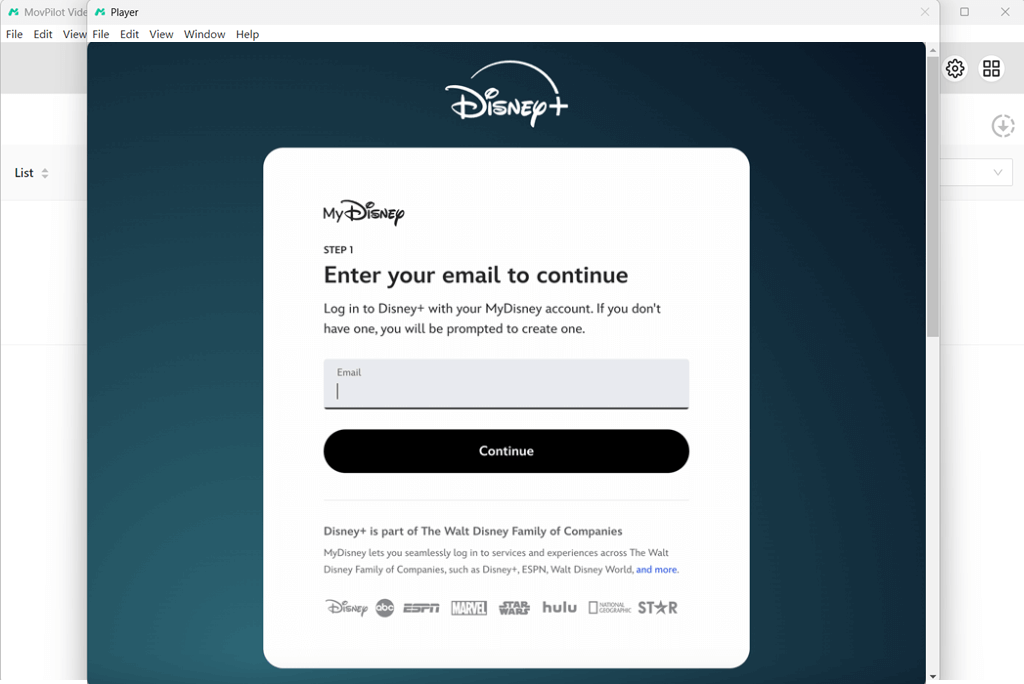
Step 1. Open MovPilot and Log in to Disney Plus
Start by downloading and installing MovPilot Disney Plus Video Downloader on your computer. Once launched, log in using your Disney+ account credentials to gain full access to its library.
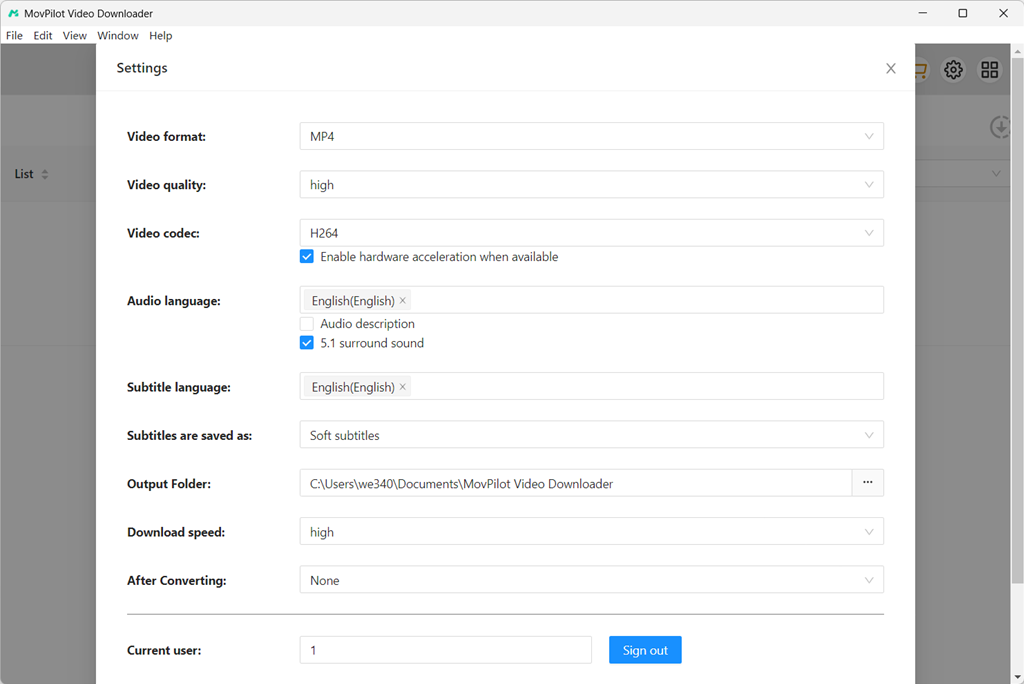
Step 2. Set MKV as Output Format
Click the gear icon at the top right, go to “Settings“, and select “MKV“ from the dropdown menu of the “Video format“. Here you can also set output parameters like video codec, quality, subtitles, etc.
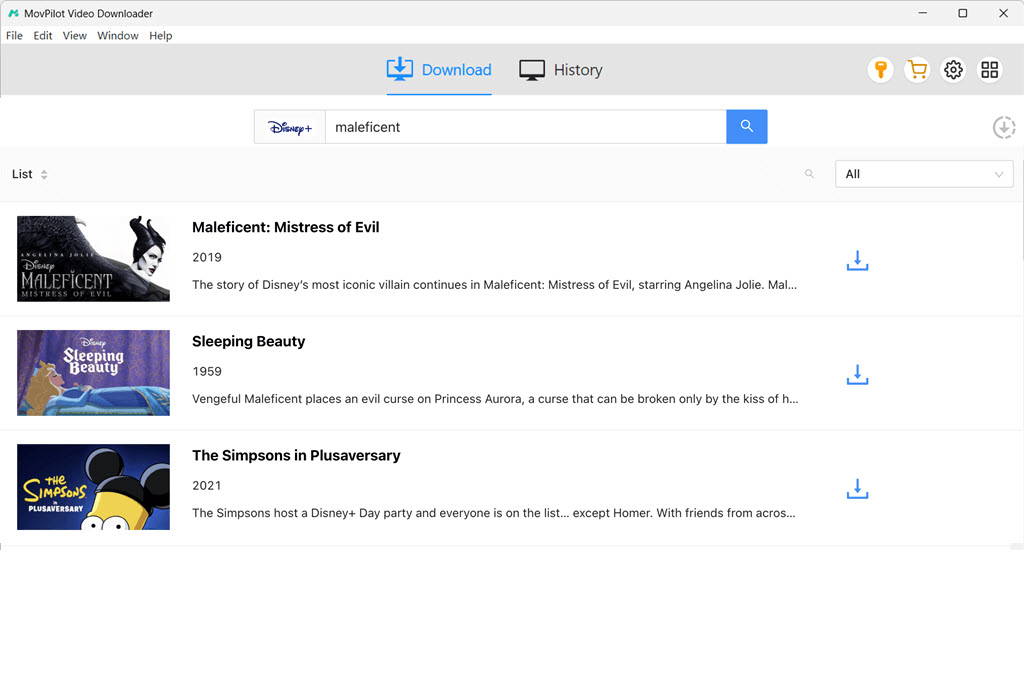
Step 3. Search for Disney Plus Videos
Enter the name of the movie, series, or episode you want to download into the search bar, and MovPilot’s integrated Disney+ search engine will quickly fetch results. Additionally, you can also paste the video link into the search engine to find a specific title from Disney+.
Step 4. Start Downloading Disney Plus Movies to MKV
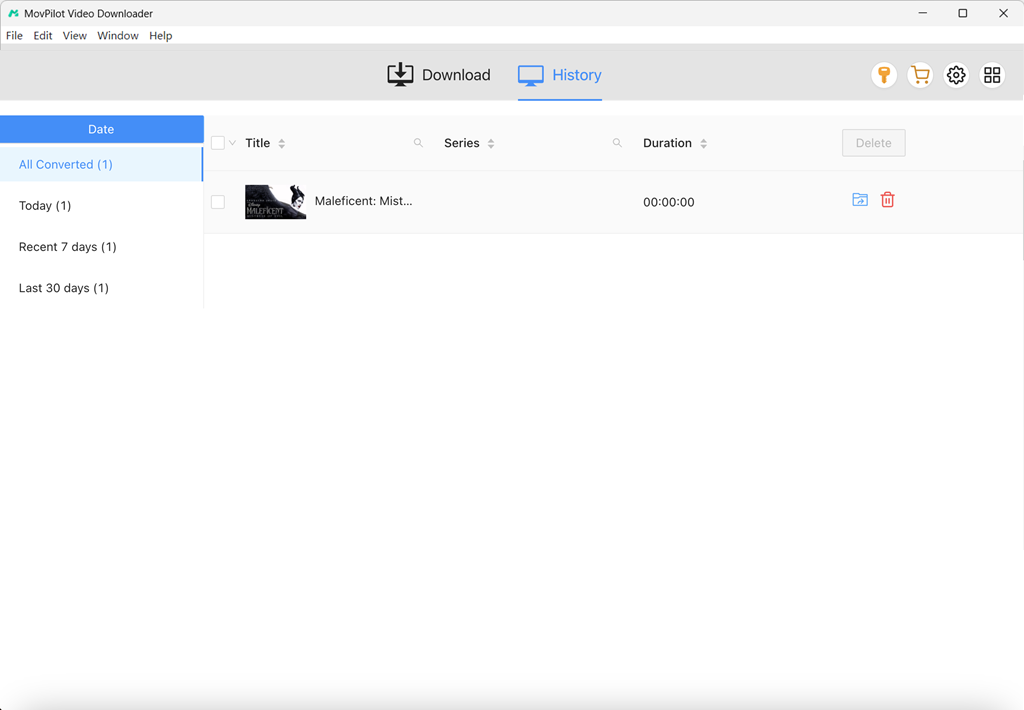
Locate the title you need, click the download icon, and MovPilot will start converting your selected Disney+ videos to MKV. If your download is interrupted accidentally, you can seamlessly resume it.
After completion, you can access all DRM-free files in the “History” tab, ready to be transferred to any device for Disney Plus offline MKV playback.
Further Readings:
Why Download Movies from Disney Plus in MKV Format?
By now, you’ve learned how to convert Disney+ videos to MKV without quality loss. But is it really worth all the effort just to remove Disney+ download limits? Absolutely. Saving Disney+ content as MKV files brings multiple long-term benefits that go far beyond simple offline playback, including:
- Truly permanent offline viewing: By saving Disney+ videos as MKV files, you get permanent local copies that can be played anytime, anywhere, without worrying about expiration.
- No ongoing Disney+ subscription required: There is no need for a subscription to keep your MKV Disney+ downloads valid.
- Play on various devices: Downloaded Disney Plus MKV files can be freely transferred to TVs, projectors, hard drives, or mobile devices and played without the Disney+ app.
- No more worries about content removal and regional blocks: With a Disney Plus to MKV converter, you can back up your favorite titles in advance and never lose access to them again.
- A more immersive viewing experience: Compared to converting Disney Plus to MP4 format, choosing MKV offers better support for multi-track audio, subtitles, and Dolby Atmos sound. While MP4 is more widely compatible, MKV is better for collection and high-definition playback.
And the best way to achieve all these benefits? MovPilot Disney Plus Video Downloader is the key.
FAQs About Downloading Disney Plus to MKV
Is it legal to download Disney Plus to MKV?
The legality depends on the use of downloads. It is illegal to download Disney Plus content to MKV for commercial use, as it violates Disney’s copyright laws. For example, to download for distribution and sales. However, it is legal if you do not for profit and only want to enjoy your favorite shows and movies at home. You can feel free to use MovPilot Disney Plus Video Downloader to download your favorite Disney+ videos to MKV if you only want to have a seamless offline viewing with family or friends.
Can I screen capture video from Disney Plus and save it as MKV?
Yes, you can screen record Disney Plus and save it as an MKV file as long as the screen recorder you use supports outputting MKV videos. Of course, a stable and high-speed internet connection is essential to avoid buffering or interruptions during the recording. Then you can screen-record your favorite Disney Plus content and output it in MKV format for personal use.
Can I download movies from the Disney+ website to MKV directly?
No. Disney+ only offers an offline viewing feature within its app on mobile devices. Therefore, you cannot directly download videos from the Disney+ website, let alone save them as universal MKV format files.
To do so, it is recommended to use a professional tool like MovPilot Disney Plus Video Downloader, which can download Disney+ videos on your laptop and convert them to DRM-free MKV files without any hassle.
Conclusion
This article covers everything you may want to know about how to download Disney+ videos to MKV format. With Disney+’s strict DRM protection and subscription limitations, MovPilot Disney Plus Video Downloader makes it easy to back up your favorite Marvel series, Pixar movies, or any other titles while preserving the original video quality, multiple audio tracks, and subtitles.
Still searching for the best Disney Plus to MKV converter? Download MovPilot and give it a try!