





“I was trying to download a video clip but it says ‘this video is DRM-protected’. How can I get around it?”
Are you also struggling to download DRM-protected videos? DRM protection can be frustrating, especially when you want to watch your favorite videos offline on the go. Fortunately, there are many effective solutions available to help you out. This article will explain what DRM protection is and provide step-by-step guides on how to download protected videos easily so that you can enjoy offline video playback anytime, anywhere.
What is DRM Protection & Playback Risks You Should Know
DRM, short for Digital Rights Management, is a technology used to protect copyrighted digital content by controlling how it is accessed, copied, and shared. Most streaming services use industry-standard DRM systems to encrypt video streams and manage playback permissions across different devices.
| DRM Technology | Commonly Used By |
| Widevine | Google Chrome, Android, YouTube, Netflix |
| PlayReady | Microsoft Edge, Windows devices |
| FairPlay | Apple TV, Safari, iPhone, iPad, Mac |
DRM-protected videos usually come with restrictions such as:
- Playback only within the official app or website
- Limited offline viewing periods
- Download expiration after a certain time
- No transferring or playback on unauthorized devices
Most major streaming platforms, including Netflix, Disney+, Amazon Prime Video, YouTube, and Udemy, rely on these DRM technologies to enforce licensing rules. Even downloaded videos remain encrypted and cannot be freely copied or shared.
Unlike ordinary MP4 files, DRM-protected videos are delivered through a secure playback process:
- Encrypted stream: The video is transmitted in an encrypted format rather than as a playable file.
- Browser security pipeline: Browsers like Chrome process protected content inside a secure media pipeline that browser extensions cannot access.
- License verification: Playback starts only after your device receives authorization from a DRM license server.
- Hardware protection: Some platforms also use hardware-based security to help prevent unauthorized copying or playback.
Because of these protections, ordinary browser extensions often cannot detect or save DRM-protected videos from premium streaming services.
From a compliance standpoint, DRM is designed to prevent unauthorized distribution and commercial misuse of copyrighted content. Circumventing DRM may violate a platform’s terms of service and, in some regions, applicable copyright laws. Users should understand these boundaries before attempting to download DRM-protected videos.
Way 1. Watch DRM-protected Videos Offline via Official Platform
Most major streaming platforms provide built-in offline download features, allowing you to watch DRM-protected videos without an internet connection. Below are the general steps to download and watch DRM-protected videos using an official platform.
Step 1. Install the official streaming app
Download and install the official app of the streaming service (such as Netflix, Disney+, or Amazon Prime Video) from the App Store or Google Play Store. Make sure the app is updated to the latest version.
Step 2. Sign in with an active subscription
Log in to your account and ensure your subscription plan supports offline downloads. Some titles or plans may not allow downloading.
Step 3. Find a downloadable video
Browse or search for the movie or TV show you want to watch. If the title supports offline viewing, you will see a Download icon on the details page.
Step 4. Choose download quality (if available)
Before downloading, some platforms allow you to select video quality (Standard or High). Higher quality offers better visuals but requires more storage space.
Step 5. Download and watch offline
Tap the Download button and wait for the process to complete. Once downloaded, you can access the video from the app’s Downloads or Offline section and watch it without an internet connection.
Note:
Downloaded videos remain DRM-protected and can only be played within the official app on authorized devices. Offline access may expire after a certain period or become unavailable if your subscription ends. If you want to remove the DRM protection, you can search for DRM removal tools for help.
Way 2. Download DRM-Protected Streaming Videos via DRM Video Downloader
MovPilot All-in-One Video Downloader is your go-to option! This one-stop solution has integrated web browsers from popular streaming platforms like Amazon Prime, Netflix, Disney+, Hulu, and HBO, which makes it easy for you to download streaming videos. Most importantly, it comes with an advanced DRM removal that can help you download DRM-protected videos to MP4/MKV in up to Full HD 1080P quality. This way you can enjoy your favorite videos without any restrictions.
Main Features of MovPilot All-in-One Video Downloader:
- Download DRM-protected videos from Amazon Prime, Netflix, Disney+, Hulu, and HBO.
- Convert protected streaming videos to DRM-free MP4 and MKV formats.
- Offer high-quality video downloads in up to Full HD 1080P.
- Support 5X faster speed to batch downloading videos.
- Provide options to select audio tracks and subtitles in different languages.
- Work well on Windows and Mac computers.
Next, let’s follow the step-by-step guide below to learn how to download DRM-protected streaming videos by using MovPilot All-in-One Video Downloader.
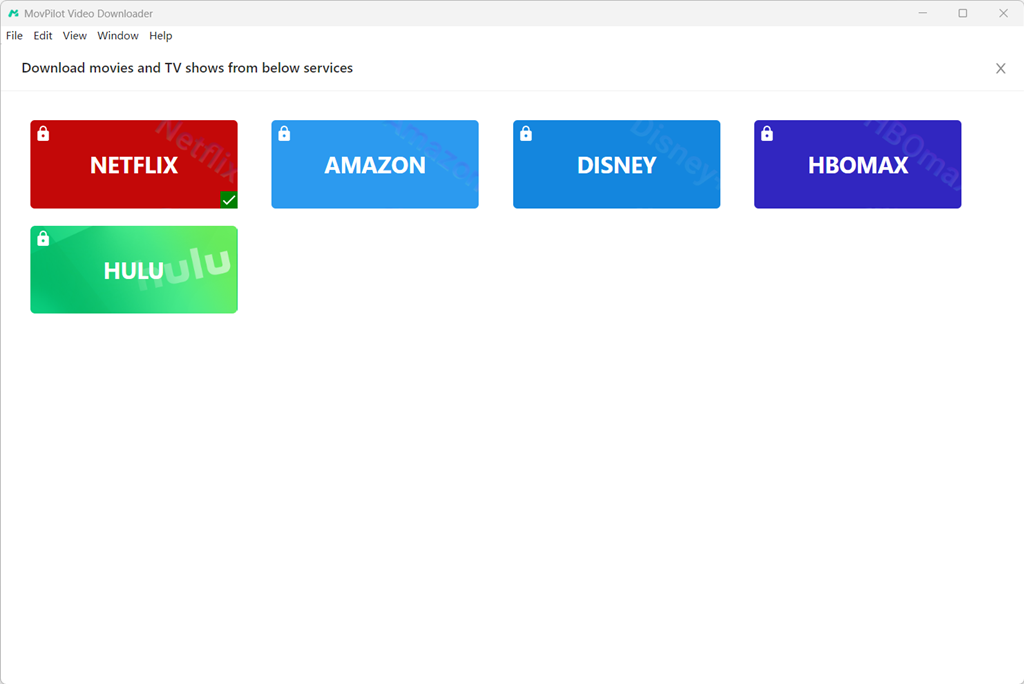
Step 1. Install and launch MovPilot All-in-One Video Downloader on your Windows/Mac computer. Then, select a streaming platform that you want to download protected videos. (Here we take downloading Netflix videos as an example.)
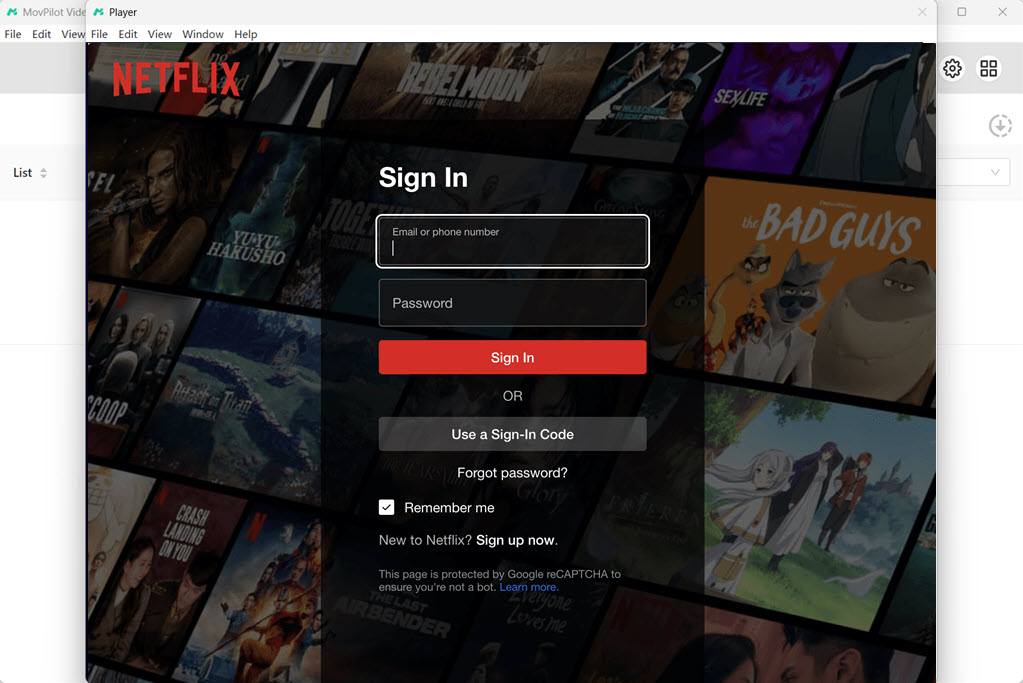
Step 2. To begin with, you will need to log in to your Netflix account. Otherwise, you cannot access the full video library of Netflix.
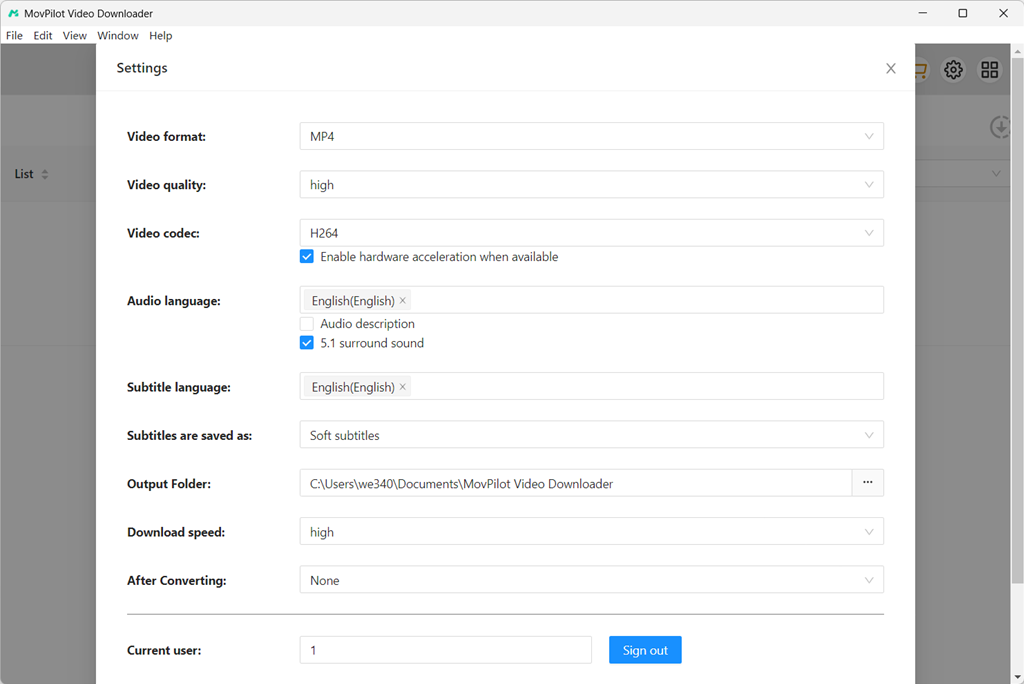
Step 3. In the main interface, click on the gear icon at the top right corner to customize the default output settings, including video format, video quality, video codec, audio language, output folder, and more.
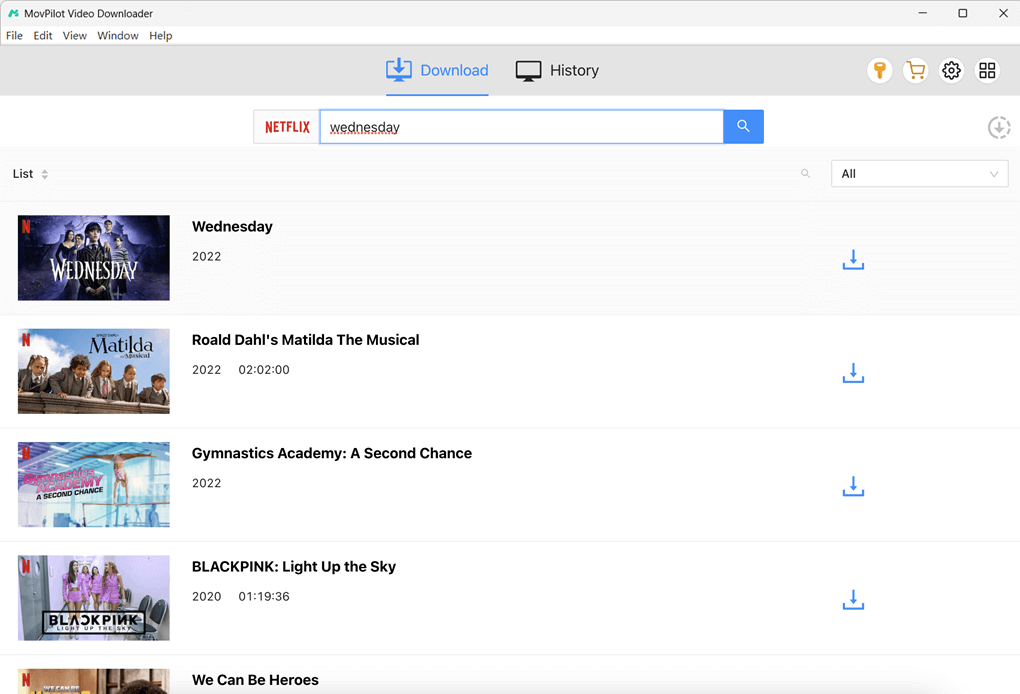
Step 4. Directly search for your wanted Netflix video by entering keywords in its built-in search engine. All relevant results will be shown on the interface at once.
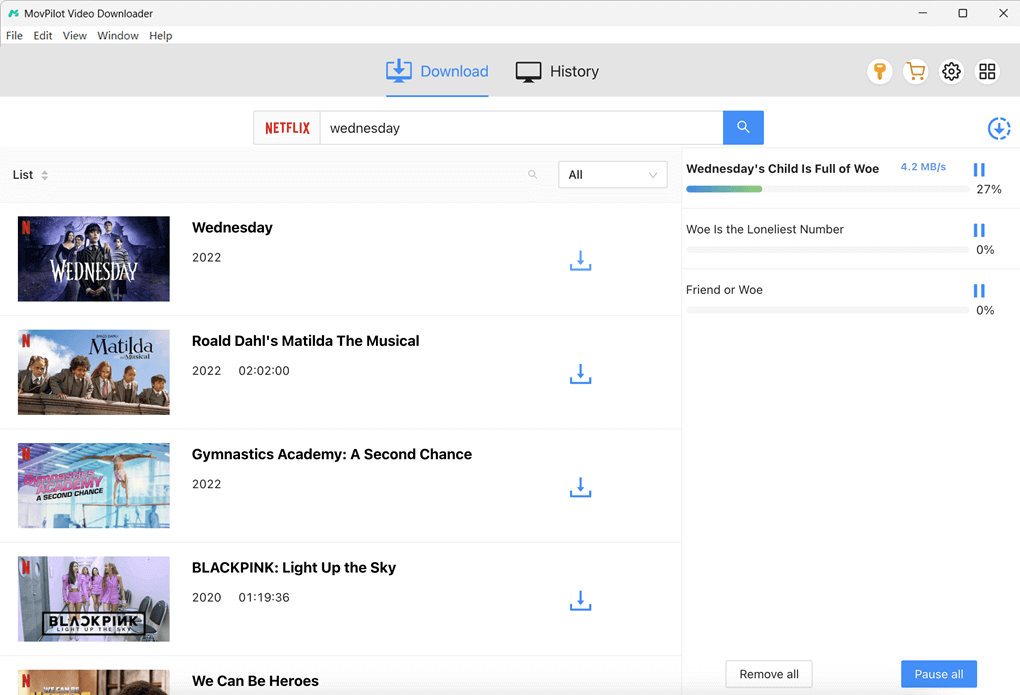
Step 5. Locate the DRM-protected video you want to download and simply hit its download button. For TV series, a pop-up window will show up, allowing you to choose specific episodes to download.
After that, MovPilot will automatically start downloading DRM-protected videos from Netflix to MP4. When finished, you can move to the “History” tab to find all your DRM-free downloads.
Way 3. Download Videos from Websites Without Advanced DRM
Video DownloadHelper is a popular extension for Firefox and Google Chrome that can help you easily download online videos from many websites and save them in MP4 or MKV format. It works best for publicly accessible videos, standard MP4 files, and some websites that do not use advanced DRM protection. Moreover, it is easy to use. If the video is downloadable, the extension can usually detect the media stream and save it for offline viewing. Here is how it works.
Note: Video DownloadHelper is suitable for websites without advanced DRM protection, such as publicly accessible videos, standard MP4 files, and some unencrypted streaming pages. It generally cannot download DRM-protected content from subscription-based streaming services such as Netflix, Disney+, Amazon Prime Video, Hulu, or Max. For these platforms, consider using a dedicated desktop downloader like MovPilot All-in-One Video Downloader instead.
Step 1. Go to Video DownloadHelper and click the “Install for Chrome/Firefox” button to initiate the installation process. Then, follow the on-screen instructions to get it enabled.
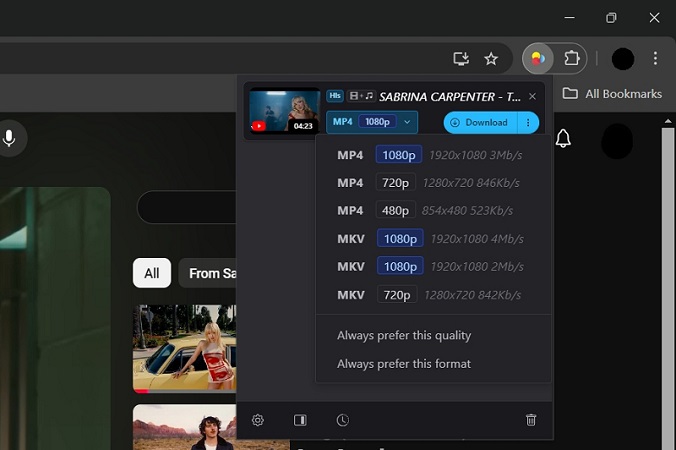
Step 2. Play the video you want to download. Video DownloadHelper will automatically detect the downloadable video on the screen. When the extension icon becomes colored, click on it to get download options.
Step 3. Choose a wanted download option from the dropdown, and then hit “Download” to start downloading DRM-protected videos on Firefox/Chrome.
Note:
This method only works for free streaming sites like YouTube, Facebook, etc. For premium content from Amazon Prime, Netflix, Disney+, Hulu, and HBO, it is advisable to use MovPilot All-in-One Video Downloader.
Way 4. Screen Record DRM-Protected Videos
Screen recorder also works as a viable solution to download DRM-protected videos. To avoid unexpected issues like a black screen, using professional options like FonePaw Screen Recorder is recommended. It can record DRM-protected videos on Windows/Mac computers, and save them in various DRM-free formats such as MP4, WMV, MOV, etc.
It is useful when you want to capture a video clip from a long video. Next, let’s see how to record and download videos on Windows/Mac with FonePaw Screen Recorder.
Step 1. Install and launch FonePaw Screen Recorder on your computer. Then, choose “Video Recorder” on the main interface to proceed with the process.
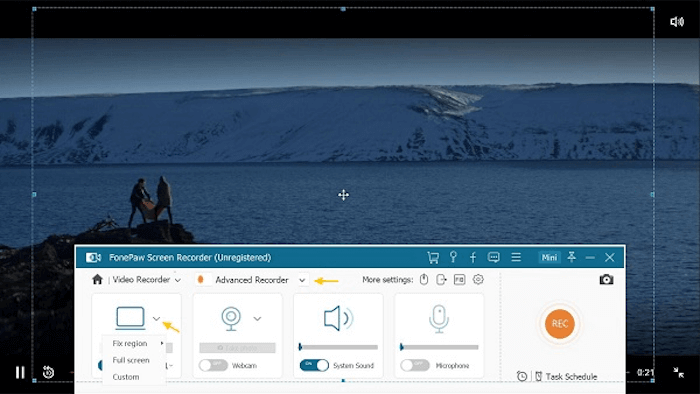
Step 2. Open the DRM-protected video you want to download. Then, move back to FonePaw and customize your recording area (Full screen is recommended). For better output quality, it is advisable to toggle off the “Microphone” option and ensure “System Sound” is enabled.
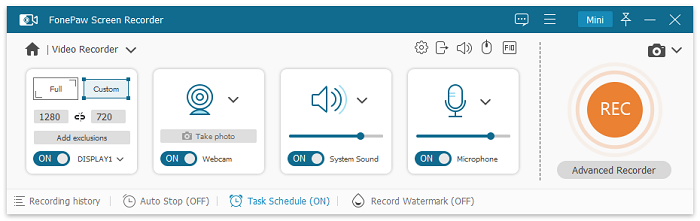
Step 3. For output settings, click on the gear icon to go to “Preference” > “Output”. Customize the video format, video quality, output folder, and more based on your needs. After that, click “OK” to confirm your actions.
Step 4. Play the DRM-protected video and click the “REC” button to start recording. To ensure high-quality output, avoid multitasking during the recording. Once the video finishes, click the “Stop” button on the floating panel, and then, you can preview and save the recorded video to your computer effortlessly.
Which DRM Video Download Method Should You Choose?
Each method offers a different balance of convenience, compatibility, and flexibility. To make the comparison more objective, we tested these methods using the same 10-episode Netflix TV series (approximately 45 minutes per episode) on Windows 11 with a stable 500 Mbps internet connection.
Since the Chrome extension was unable to download Netflix videos during testing, we used several Dailymotion videos with a similar total duration to evaluate its download performance. We compared download efficiency, output quality, subtitle support, and whether the downloaded videos could be played as local files.
| Method | Best For | Video Quality | Download Time (10 Episodes in 1080P) | Limitations | Local MP4 |
|---|---|---|---|---|---|
| Official Offline Download | Watching within the streaming app | Up to original streaming quality | ≈ 11 min | Expires with subscription; app-only playback | ❌ |
| MovPilot All-in-One Video Downloader | Saving OTT streaming videos for flexible playback | Up to 1080P* | ≈ 13 min | Windows & Mac only | ✅ |
| Chrome Extension Video DownloadHelper | Public videos & non-DRM websites | Up to 4K (Depends on source) | ≈ 20 min (for Dailymotion videos) | Doesn’t work with most DRM-protected streaming services | ✅ |
| Screen Recorder | Recording short clips | Up to 4K | ≈ 7.5 hours (real-time) | Time-consuming; may lose quality | ✅ |
*Maximum output quality depends on the source platform, available stream, and your subscription plan.
How We Tested
To evaluate each method fairly, we tested them under the same conditions using the following criteria:
| Test Item | Result |
| Tested Platforms | Netflix, Disney+, Amazon Prime Video, YouTube |
| Test Content | One 10-episode TV series (~45 min/episode) |
| Operating System | Windows 11 |
| Network | Stable 500 Mbps broadband |
| Resolution Checked | Up to 1080P (depending on source) |
| Audio Tracks | Checked whether multiple language tracks could be preserved |
| Subtitles | Tested embedded and external subtitle support (where available) |
| Batch Download | Tested downloading all 10 episodes in one task |
| Success Rate | Number of episodes downloaded successfully without errors |
| Average Speed | Total time required to complete the batch download |
Test observations
- Official downloads were the fastest to save, but all videos remained encrypted inside the streaming app.
- MovPilot successfully completed the full batch download while preserving available audio tracks and subtitles in our test.
- Chrome extensions worked well on websites without advanced DRM but could not download videos from premium streaming platforms.
- Screen recording was the most universal approach but required recording each episode in real time, making it the least efficient option for long videos.
Why Chrome Extensions Usually Can’t Download DRM Videos
Many premium streaming services, including Netflix, Disney+, and Amazon Prime Video, use DRM technologies such as Widevine to encrypt their video streams. Because Chrome plays these videos inside a secure sandbox and decrypts them only after license verification, browser extensions cannot access the playable video. As a result, they may fail to detect the stream, download only encrypted files, or produce a black screen.
When Chrome Extensions Still Work
Although Chrome extensions are generally ineffective for DRM-protected streaming services, they can still be useful on websites that do not use advanced DRM protection. They are commonly able to download:
- Standard MP4 videos hosted on public websites
- Videos from websites without DRM encryption
- Some HLS (M3U8) streams that are not encrypted
However, browser extensions are generally not suitable for downloading videos from services such as:
- Netflix
- Disney+
- Amazon Prime Video
- Hulu
- Max (formerly HBO Max)
If you’re downloading videos from a non-DRM website, a browser extension may be a quick and convenient option. The next method introduces one of the most widely used browser extensions for this purpose.
FAQs on DRM-Protected Video Download
How can I download DRM-protected videos on Android?
You can use the official streaming app to download them on Android. However, these downloads usually remain encrypted and can only be watched inside the app.
If you want DRM-free local video files, most third-party DRM video downloaders like MovPilot require a Windows or Mac computer. You can download the videos on your computer first and then transfer them to your Android device.
Can downloaded DRM-free files be re-shared or re-uploaded?
In most cases, no. Even if a video or audio file is DRM-free, it is still protected by copyright laws. DRM-free only means the file has no technical playback restrictions but not grant redistribution rights. Re-sharing or re-uploading DRM-free files without permission may violate the platform’s terms of service or copyright regulations. For personal offline viewing or backup use, DRM-free files are generally acceptable, but always check the specific platform’s usage policy first.
Why do some DRM-protected videos show a black screen when recording?
DRM-protected videos may show a black screen during recording because some platforms use copy protection technologies such as HDCP (High-bandwidth Digital Content Protection) to prevent unauthorized screen capture. Browsers and media players may block the video output while still allowing audio playback.
In some cases, disabling hardware acceleration in browsers like Chrome or Firefox can help resolve black screen issues during recording. This issue is more commonly seen when playing DRM-protected content through web browsers or apps that use hardware-based video decoding and protection.
Can I download DRM-protected videos in 4K?
Yes, some DRM video download methods support 4K output. However, the actual download quality depends on several factors, including the streaming platform, the original video quality, and your subscription plan.
In our testing, we used 1080P as the comparison standard because it is more widely supported across different platforms and tools.
Are online DRM video downloaders safe?
Most online DRM video downloaders cannot properly handle content protected by advanced DRM systems. In addition, some websites may contain aggressive ads, request unnecessary permissions, or create privacy risks when you upload video links or account information.
For better security, avoid unknown online tools and always check the privacy policy, permissions, and reputation of any downloader before using it.
Conclusion
This article explains how to download DRM-protected videos and provides step-by-step guides for different methods. For videos from free streaming sites without advanced DRM protection, Video DownloadHelper can be a convenient option.
If you need a reliable solution for recording DRM-protected videos, FonePaw Screen Recorder is worth considering. However, if you want to download videos from Amazon Prime, Netflix, Disney+, Hulu, and HBO as local MP4/MKV files for more flexible playback, MovPilot All-in-One Video Downloader offers a practical solution with support for batch downloads, subtitle and audio track selection, and high-quality output options.
MovPilot All-in-One Video Downloader
Download videos from streaming services to be played on any device without limits.