






“I will be flying for hours, and the wifi is unreliable. I’d love to watch some shows, and I am an AppleTV+ subscriber. Can I download TV shows from Apple TV onto my Mac?”
If you’re reading this article, chances are you’re just like the person above, searching for ways to watch Apple TV+ offline before a long flight. Well, you’re in luck.
This ultimate guide will walk you through exactly how to download Apple TV+ shows onto any supported device. Whether you’re heading out for a business trip, planning a vacation, or simply want to save content in advance for later viewing, you’ll find everything you need right here. Let’s dive in.
Read Also:
Can You Download Movies on Apple TV+?
Absolutely. If you’re an Apple TV+ subscriber, the official app does allow you to download your favorite Apple TV+ shows and movies on supported platforms such as Windows, Mac, iOS, and Android. However, the official downloads are protected by DRM. This means you can only watch the downloaded content within the Apple TV+ app and on the device where you downloaded the video.
Additionally, some Apple TV channels impose restrictions, such as limits on the number of devices you can download content to, as well as how many episodes or movies can be downloaded simultaneously. If you find these limitations too restrictive, there are also alternative solutions available that allow you to download Apple TV+ videos as MP4 or MKV on Windows and Mac for more flexible offline viewing.
1. Download Videos on Apple TV on the App (Mac/Windows/iOS/Android)
You might be wondering if you can download Apple TV+ shows or movies directly from tv.apple.com, but unfortunately, this is not allowed. The official download feature is only available via the Apple TV app for offline viewing. Using the Apple TV app, you can download content on Mac, Windows, iOS, and Android, as long as your device meets the system requirements:
| Device Type | Minimum System Requirements |
|---|---|
| Mac | macOS Catalina (10.15) or later |
| iOS | iOS/iPadOS 13 or later |
| Windows PC | Windows 10 (22H2) or Windows 11 |
| Android | Android 10 or later |
If your device meets the system requirements above, follow these simple steps to download Apple TV+ shows or movies:
Step 1. Download and open the Apple TV app.
Step 2. Sign in with your Apple ID.
Step 3. Browse or search for the show or movie you want to download.
Step 4. Go to the title’s details page.
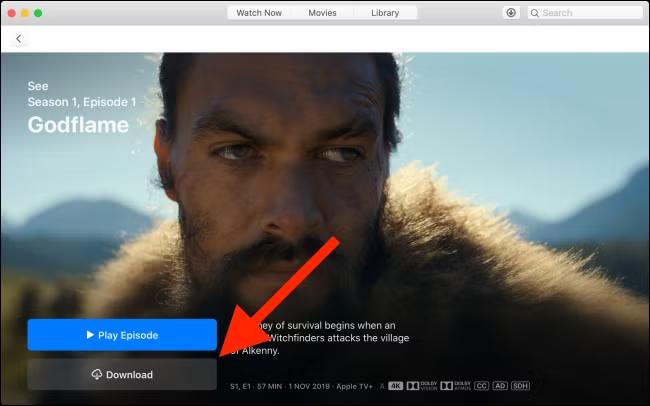
Step 5. Tap the “Download” button next to the title to start downloading. Once the download is complete, go to Library > Downloaded to access and watch it offline.
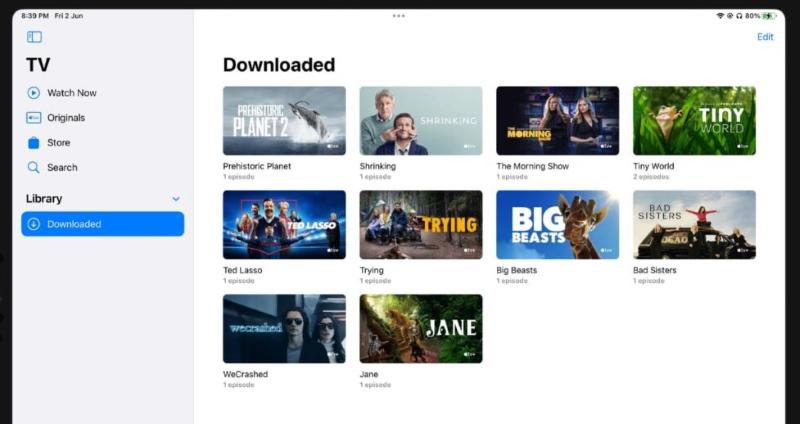
Download Limit Tips:
- Not all content on Apple TV+ is available for download. If the download button is grayed out, the title is not downloadable.
- You cannot download videos on Apple TV devices, smart TVs, streaming devices, or on tv.apple.com. These platforms only support streaming.
- Most downloaded videos are available for 30 days. Some titles may expire even sooner and will be automatically removed or become unplayable after expiration.
- Downloads are DRM-protected. You can’t transfer downloaded videos to other devices or play them with non-Apple software.
- Downloads may be region-locked. A show downloaded in one country/region may become unavailable when you travel to another.
- Some Apple TV channels have limits on how many videos you can download at once and how many devices can store downloads. If you exceed the limit, the app will prompt you to delete some content before downloading more.
2. Download Apple TV Shows as MP4/MKV (Windows/Mac)
It’s clear that while downloading movies and TV shows via the official Apple TV app is the fastest and most convenient method for subscribers, the actual user experience can be quite limited due to various restrictions. That’s why in this section, we’ll introduce an alternative method. If you’re looking for a way to download and watch your favorite Apple TV+ content without any limitations, this solution is exactly what you need.
MovPilot Apple TV+ Video Downloader is a professional third-party streaming video downloader that allows users to download videos on Apple TV+ without restrictions. Whether you subscribe to the ad-free or ad-supported Apple TV+ plan, this tool enables you to download any movie, TV show, or episode for offline viewing. It works by removing DRM protection and saving the videos in MP4 or MKV format, so the downloaded files are permanently stored on your device and will never expire.
The downloaded video quality can reach up to 1080p HD, and H.265 encoding is available if you want even better efficiency and quality. Thanks to its built-in hardware acceleration, MovPilot can batch download videos over 5x faster than the official Apple TV app. What’s more, it comes with a built-in Apple TV+ search engine, so you don’t need to install the Apple TV app. You can directly search for videos by keywords or paste URLs within the program.
Key Features of MovPilot Apple TV+ Video Downloader
- Unlimited downloads of Apple TV+ movies, shows, and series.
- Save videos as MP4 or MKV that never expire.
- Retain full metadata for easy file management.
- High-quality 1080p output with no compression.
- Support for multiple audio tracks and subtitles.
- Safe, clean, and easy-to-use interface.
Here’s how to Download Apple TV+ Shows Using MovPilot
Step 1. Download and launch MovPilot Apple TV+ Video Downloader on your Windows or Mac. Choose “Apple TV+” on the home screen.
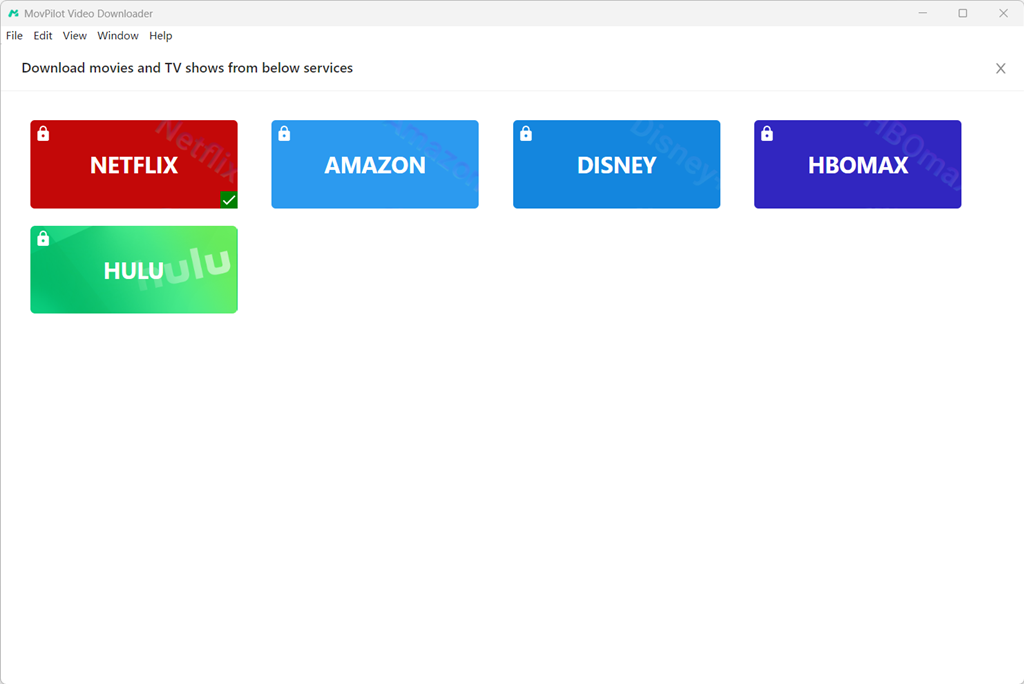
Step 2. Log in with your Apple ID.
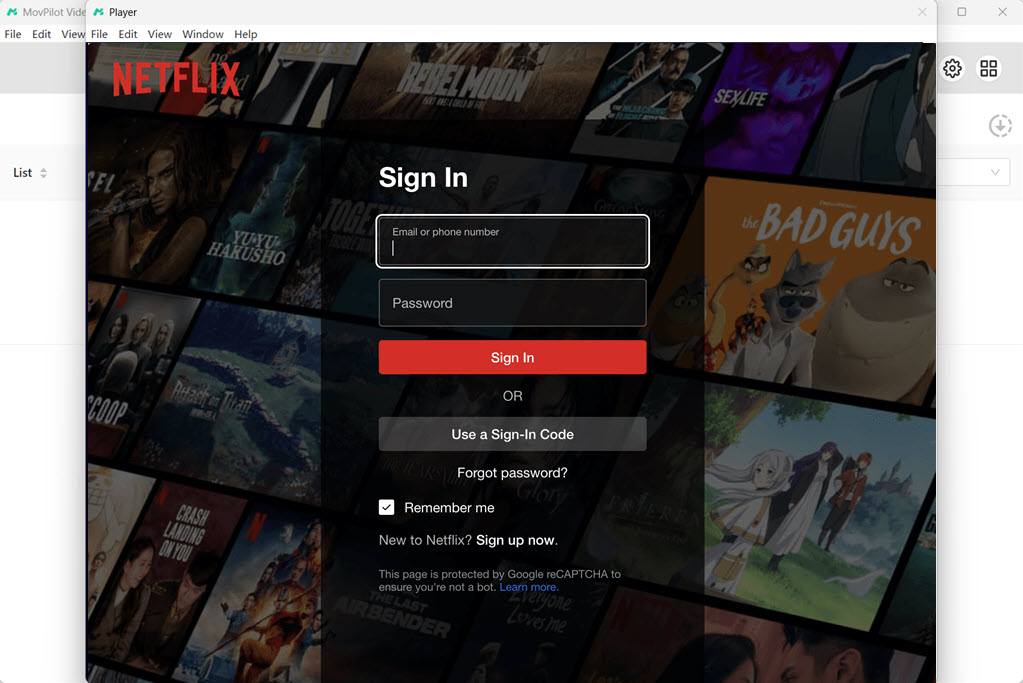
Step 3. Search for the movie or TV show you want to download, then click the “Download” button next to the result.
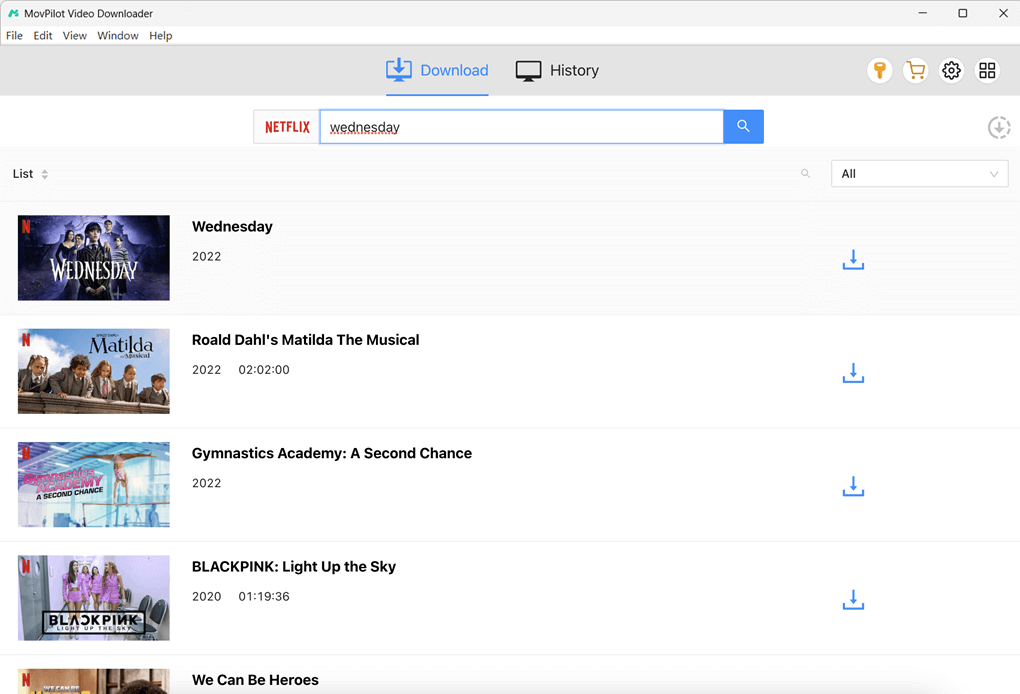
Step 4. In the pop-up window, customize download options such as video quality, audio language, and subtitles.
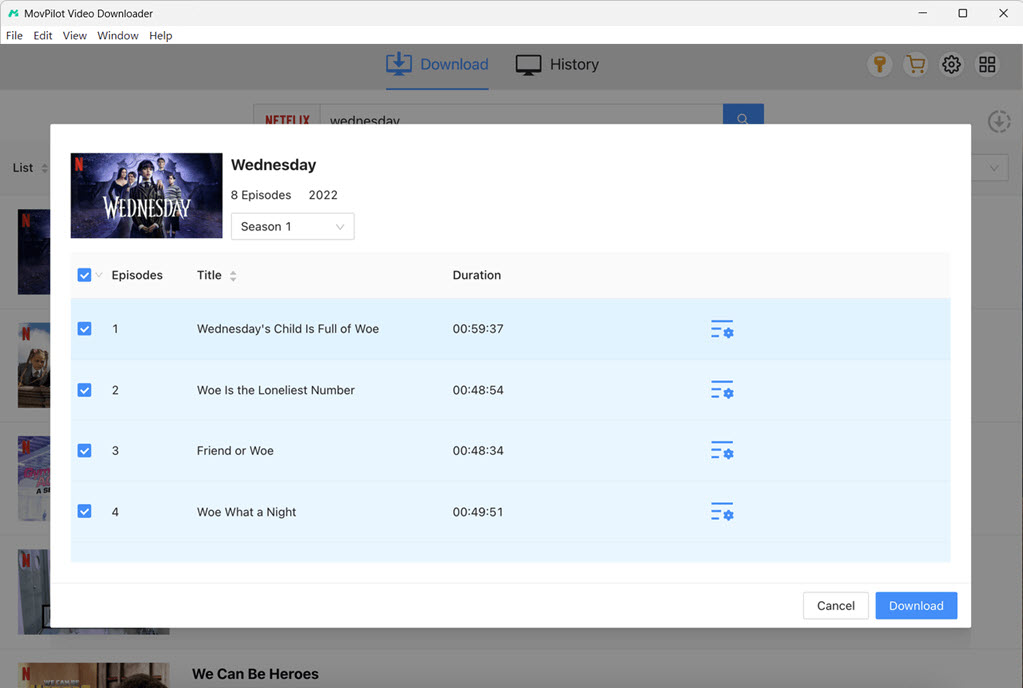
Step 5. Click the “Download” button in the bottom-right corner to start downloading.
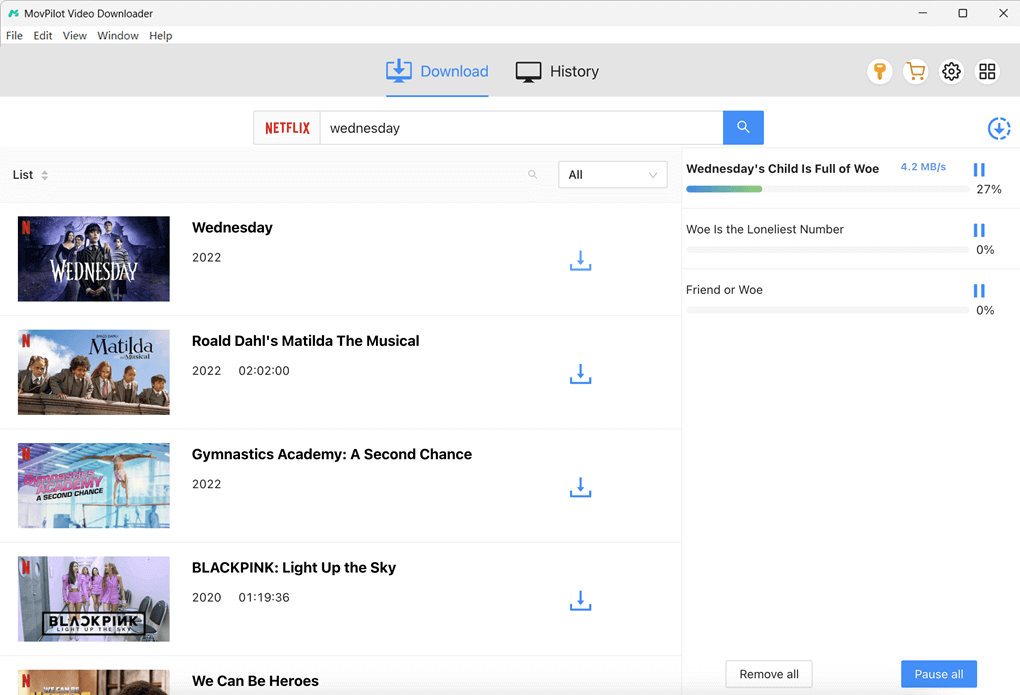
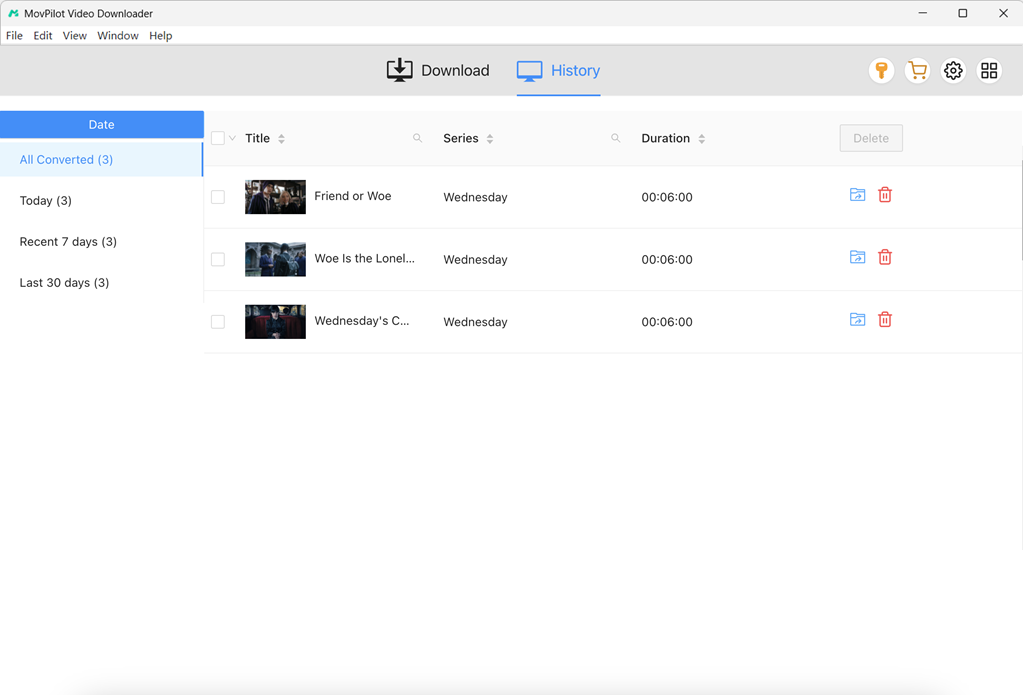
Step 6. Once completed, go to the “History” tab at the top to find and watch your downloaded videos.
FAQs About Apple TV+ Video Download
Can You Download Movies You Rent on Apple TV?
Yes, rented movies can be downloaded for offline viewing on devices such as iPhone, iPad, Mac and PC. However, direct downloading is not supported on Apple TV, smart TVs, or streaming devices. You can only stream and play rented movies on these platforms.
How Long Can I Keep Downloaded Shows?
Most Apple TV+ or Apple TV channel content can be kept for up to 30 days after downloading. However, some channels may enforce a shorter viewing window. Additionally, if your device doesn’t connect to the internet for a long time to refresh authorization, the video may expire or be removed, even if unwatched. Once playback starts, some shows may also have a 48-hour viewing period limit.
Are Subtitles Included in Downloads?
Yes. Apple TV+ original content offers subtitles and/or audio in nearly 40 languages, including subtitles for the deaf or hard of hearing (SDH) or closed captions. When you download a video, subtitles are included. However, the available subtitle languages are often limited, and not every title offers a wide selection of languages.
Additionally, some users have reported issues where subtitles appear when watching on a Mac but are missing when viewing the same content on a mobile device.
Can I Download Apple TV+ Shows on Apple Smart TV?
No. Even if you own an Apple-branded smart TV with the Apple TV app, you cannot download shows directly on it. All smart TVs, Apple TV set-top boxes, and the Apple TV web version only support streaming, not offline viewing. If you want to download Apple TV+ shows, you can do so on devices such as iPhone, iPad, Mac, or PC.
Conclusion
That wraps up our complete guide on how to download Apple TV+ shows. If you’re still undecided on which method to use, we highly recommend MovPilot Apple TV+ Video Downloader. It removes all the limitations of the official method, allowing you to download Apple TV+ content freely, save it permanently, and watch it anywhere, anytime, without worrying about DRM, expiration dates, or playback restrictions. If this sounds like the solution you’ve been looking for, go ahead and give it a try!