






Apple TV+ not working errors can be quite annoying when you are going to entertain yourself with your favorite movies or TV series on weekends! Actually, you’re not alone. Many users also ran into problems like app crashes, playback errors, or login failures, resulting in an unpleasant video streaming experience while using the Apple TV+ app.
Hence, to help bring a smooth and enjoyable Apple TV+ performance back to you again, in this guide, we’ll explore the top 10 solutions to fix Apple TV+ not working effectively. If you also need help, don’t hesitate to read and get the issue fixed right away!
Apple TV+ App Issues
Actually, the most likely causes leading to Apple TV+ not working errors may lie within the Apple TV+ app itself. Corrupted data, outdated versions, or temporary bugs can prevent the app from functioning correctly. Below are the 3 most common solutions to fix the errors.
Solution 1. Reset Apple TV+ App
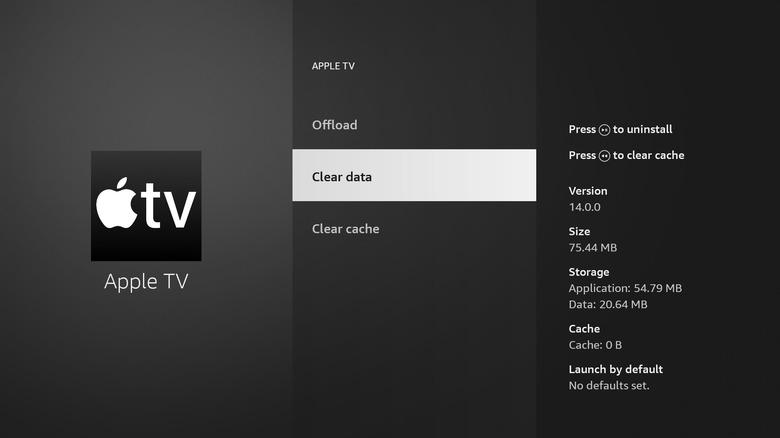
If the app freezes or crashes frequently, resetting it can help. Here’s how you can do it properly:
STEP 1. Open “Settings” on your Apple device.
STEP 2. Go to “General” > “iPhone/iPad Storage” (or “Storage” on Apple TV).
STEP 3. Find the Apple TV+ app and select “Offload App” (this clears cache without deleting data).
STEP 4. Reopen the app and check if the Apple TV+ not working issue is resolved.

Solution 2. Clean Up Apple TV+ App Cache
As the app will automatically load and store cached data to ensure a smoother performance, sometimes, a cluttered cache can slow down the app or cause Apple TV+ not working errors. Now, also check the steps below to get them solved:
STEP 1. Launch the Apple TV+ app.
STEP 2. Go to “Settings” within the app.
STEP 3. Scroll down to find the “Clear Cache” or “Reset Data” (if available) option.
STEP 4. Tap it and then restart the app to see if performance improves.
Solution 3. Uninstall and Re-install Apple TV+ App
A fresh installation can eliminate corrupted files to make the Apple TV+ app work normally again. Just follow the steps below to get it done!
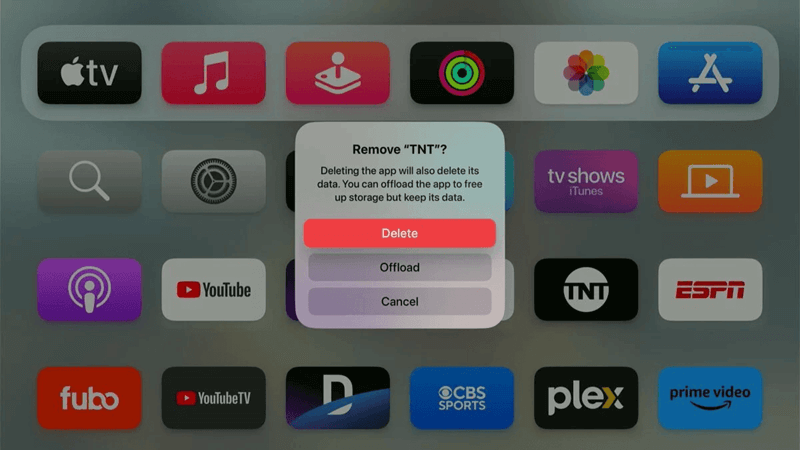
STEP 1. Find the Apple TV+ app on your device’s Home Screen. Then press and hold the Apple TV+ app icon.
STEP 2. Select “Remove App” > “Delete App”.
STEP 3. After uninstalling the app, go to the App Store, search for Apple TV+, and reinstall it.
STEP 4. Log in again and test playback to see if the Apple TV+ app works as usual now.
Device Related Problems
Despite the Apple TV+ app itself, sometimes your device’s software or hardware issues could also cause Apple TV+ not working. Let’s also check some workable solutions to deal with such situations.
Solution 4. Restart Devices
If the Apple TV+ app suddenly fails to work properly, the quickest method you are able to try is by restarting your devices to reset all programs, and this may work to help:
- iPhone/iPad: Hold the “Side + Volume” button > Slide to power off > Turn on after 30 seconds.
- Apple TV: Go to “Settings” > “System” > “Restart”.
- Mac/PC: Click “Apple Logo” > “Restart”.
Solution 5. Upgrade Device Systems
Older OS versions may not support the latest Apple TV+ updates, and the incompatibility leads to the app not working error. Hence, you’d better get your Apple device systems updated in order to make the app run smoothly once again:
- iPhone/iPad: Navigate to “Settings” > “General” > “Software Update” to get the latest iOS system installed.
- Apple TV: Turn to “Settings” > “System” > “Software Updates” to complete the TV system update.
- Mac: Tap the Apple Logo > “About This Mac” > “Software Update” to use the newest macOS system and run the Apple TV+ app once again.
In most cases, when your device systems are up-to-date, by installing the latest Apple TV+ app, you are able to enjoy a smooth video playback experience once again.
Errors Resulted from Apple TV+ Account
Since Apple TV+ is a subscription-based service, if you are not using a subscription account, the Apple TV+ services are definitely not working.
Solution 6. Your Apple TV+ Subscription Expired
Hence, you’d better check whether your account subscription is on the go. If not, resubscribe to it, and the Apple TV+ app will work again for you. Here are the steps to check your subscription status:
STEP 1. In the Apple TV+ app, go to “Settings” and tap your Apple ID.
STEP 2. Select “Subscriptions”.
STEP 3. Check if Apple TV+ is active. If expired, renew it and refresh the app to access the subscription features again.

Solution 7. Sign Out and Sign in Apple TV+ Account
If your Apple TV+ subscription doesn’t expire at all, then it is possible for you to re-authenticate your account and resolve the not working issue that may be caused by login errors. Here is what you can do:
STEP 1. Go to “Settings” and tap your profile in the Apple TV+ app.
STEP 2. Scroll down and tap “Sign Out” to log out your account.
STEP 3. Restart your device and sign back in to see if Apple TV+ works now.
Network Problems
For sure, another common cause of Apple TV+ not working may be a weak or unstable network connection. Hence, ensuring a stable Internet connectivity can also improve the performance of Apple TV+ to make it work smoothly again.
Solution 8. Restart Modem and Router
Firstly, by power cycling your network devices can improve a better network connection. So simply by unplugging your modem and router for 30 seconds, and then plug them back in once again, the network condition can become stable again. Now, launch the Apple TV+ app and functions will all work smoothly!
Solution 9. Switch to A Faster Wi-Fi Connection
For sure, you can also switch to a faster Wi-Fi connection in order to make the video streaming to be more smoothly. Especially for high-resolution movie playback, you’d better use the 5GHz band to ensure the Apple TV+ app can run normally without freezing or keeping loading.
Ultimate Solution: Download Apple TV+ Videos to Avoid Not Working Issues
It is obvious that Apple TV+ not working may result from multiple reasons. If you want to ensure a smooth video streaming experience, downloading Apple TV+ videos in advance can help avoid most unexpected errors.
MovPilot Apple TV+ Video Downloader allows you to directly download shows and movies from Apple TV+, and then save them in mainstream MP4 or MKV formats to play locally without worrying about any streaming errors caused by Apple TV+ not working. The software will ensure HD resolutions (up to HD 1080p in maximum), with original sound effects and also multi-language subtitles to keep Apple TV+ videos offline for a more convenient playback experience.
Now, also grasp the brief guide below to see how to use MovPilot Apple TV+ Video Downloader to download Apple TV+ videos to play offline without worrying about Apple TV+ not working issues:
STEP 1. Launch MovPilot Apple TV+ Video Downloader and log in via your Apple ID first.
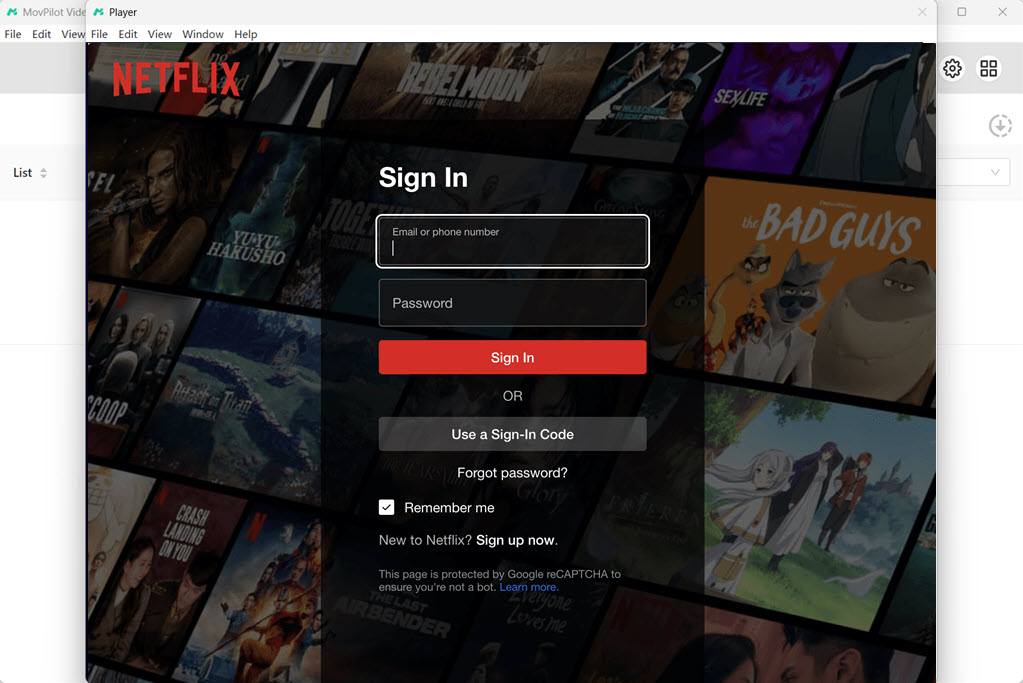
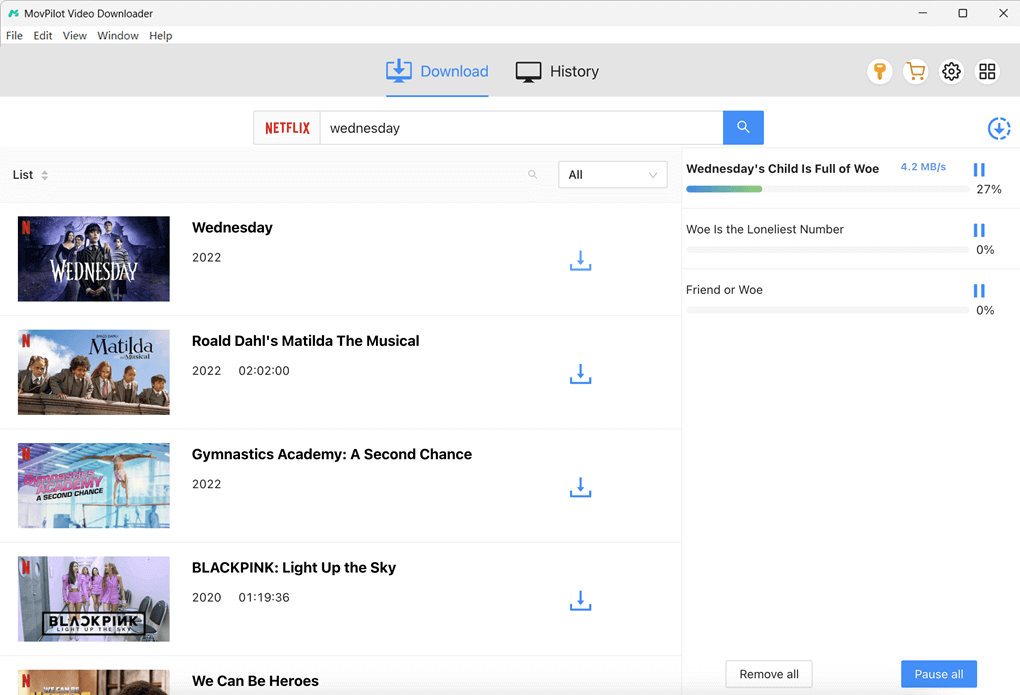
STEP 2. Directly enter titles of the videos you’d like to download, and the searching results will come up and let you select.
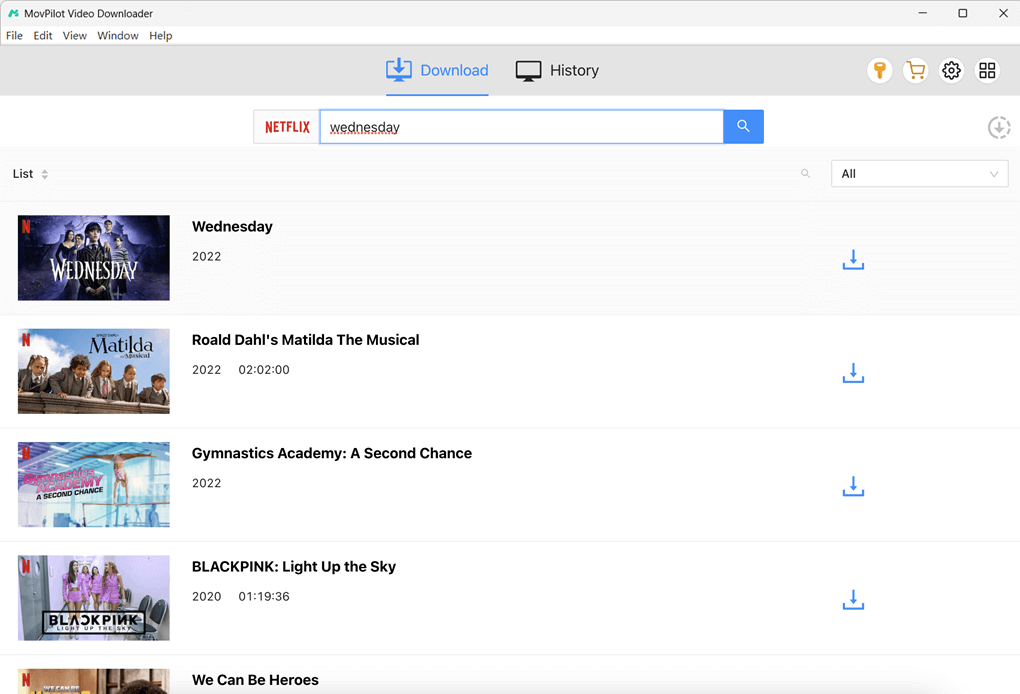
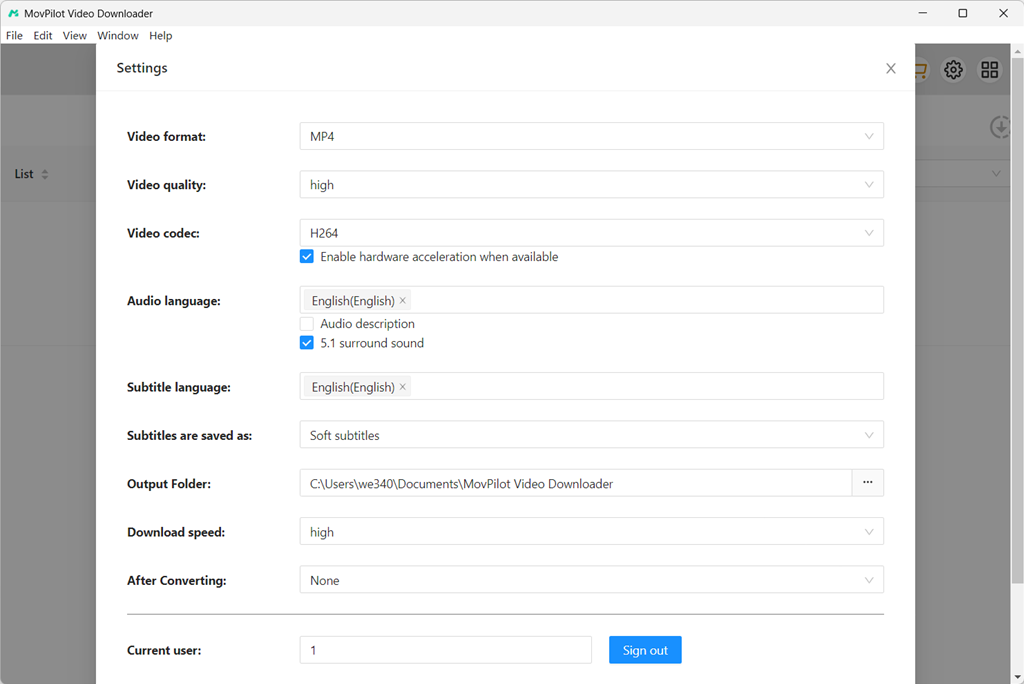
(Optional) STEP 3. To preset downloading settings, you are able to tap the “Setting” icon in the upper-right corner. Here, you can adjust the output format, quality, video codec, and also subtitles as well as audio track languages as you desire.
STEP 4. Finally, simply tap the download icons behind the videos to save Apple TV+ videos offline right away.
Conclusion
Apple TV+ not working can be frustrating, but most issues are easily fixable. In this blog, the 10 quick and effective solutions are provided to help you get over the trouble without hassle! You are also able to download Apple TV+ videos to MP4 offline in advance via MovPilot Apple TV+ Video Downloader to avoid all possible errors and enjoy the playback smoothly with local media players. Now, freely install the software and have a try!