






For Apple device users, you must be familiar with Apple TV. If you are just about to get started with your video streaming journey with this application, catching up with hit shows like “Ted Lasso” or enjoying Apple TV+ originals on your Windows PC, you may feel aimless and don’t know what to do – the Apple TV application is not installed by default on Windows systems!
Hence, in this tutorial, we’ll walk you through each step, from signing in to troubleshooting playback issues effectively. If you are also using a PC but want to watch Apple TV on desktop, dive in and follow the procedures to make it work!
1. Watch Apple TV on PC with Chrome Browser
For convenience, Apple TV has released a web player for audiences to access the service whenever they need, making video streaming more convenient! Therefore, using Google Chrome or other modern web browsers to watch Apple TV on PC can be quite a rational option to try.
In the following, see the manipulation guide and try it in no time:
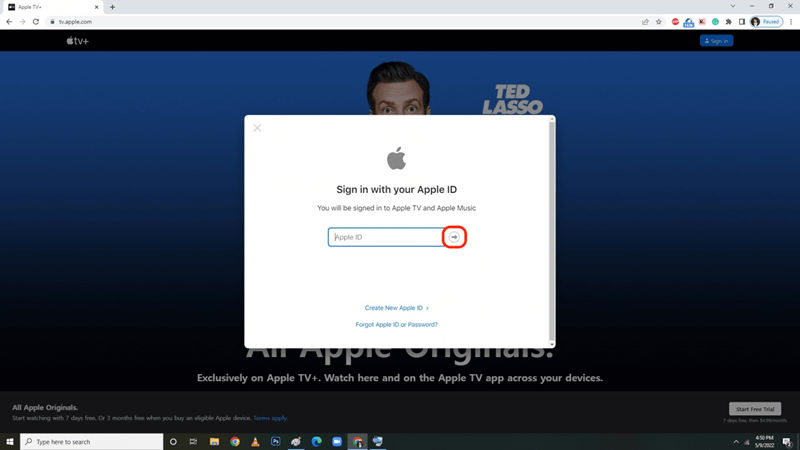
Step 1. First, open Google Chrome on your Windows PC and go to the Apple TV web player.
Step 2. Sign in with your Apple ID (the same account used for your Apple TV+ subscription).
Step 3. If a notification window prompts to ask you to verify your subscription or start a free trial when you’re new to Apple TV+, follow the guide to complete the operations.
Step 4. Subsequently, when the login completes, browse the Apple TV library and click on any show or movie to start streaming.
Tip:
- For the best experience, use full-screen mode (click the full-screen icon in the player controls).
- You’d better ensure your Chrome browser is updated for smooth playback in the Apple TV web player. If you encounter buffering, check your internet speed or try lowering the video quality in the player settings.
2. Watch Apple TV on PC Official App
Streaming Apple TV with a web browser works well, and it can also be convenient enough, but downloading the official Apple TV app can let you unlock more premium features like offline streaming or AirPlay support. Better still, you can also access 4K streaming by using the official app! Now, let’s also walk through the procedures below and grab the way to watch Apple TV on PC with the official Apple TV app:
Step 1. First, go to the Microsoft Store on your Windows 10/11 PC and search for Apple TV.
Step 2. Install the Apple TV app and then run it on PC. Once you log in with your Apple ID credentials, you will be verified for the subscription status.
Note:
- Apple TV can only be used after subscribing to the Apple TV membership.
- Why Apple TV+ Not Working? 10 Ultimate Solutions to Fix It!
Step 3. If your subscription status isn’t updated, go to Settings >> Account to refresh it.
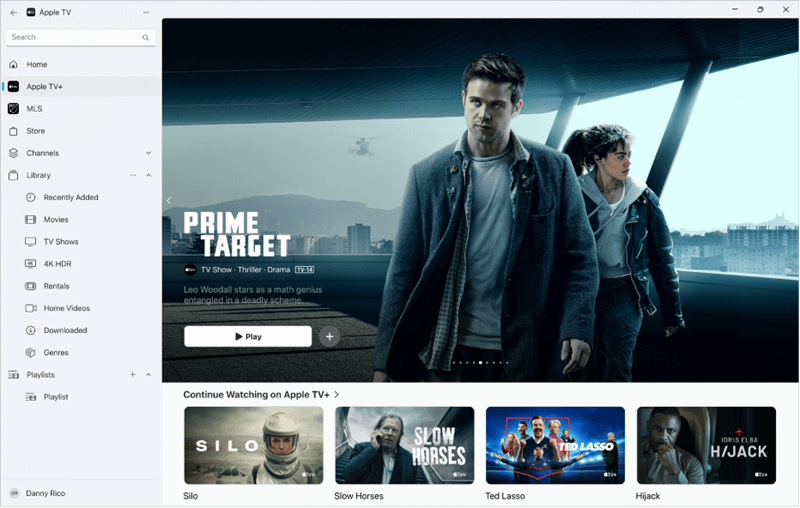
Once complete, you can start your Apple TV streaming journey by searching for your favorite content and playing it in no time!
Tip:
If you subscribe to ad-free plans, the content is available for downloading! Simply tap the Download button next to any title you like, and the videos will be saved to your offline video library for streaming locally.
3. Watch Apple TV as MP4 on PC Offline
When Apple TV+ is only available to subscribers, those without a subscription won’t be able to access any of its content. If you don’t subscribe or if you cancel your subscription, you’ll lose access to all videos on the platform. The best way to bypass this obstacle and even watch Apple TV on PC without the web player or the official app is to directly download videos from Apple TV+ to regular video files like MP4.
MovPilot Apple TV+ Video Downloader directly embeds the official Apple TV web player in the program, which lets you access all video resources to download them offline in no time. You don’t need a premium account with the official download function equipped, but MovPilot Apple TV+ Video Downloader can directly fetch the video data and download Apple TV videos in MP4/MKV format instantly.
Moreover, MovPilot Apple TV+ Video Downloader retains the original visual as well as sound effects while resolving the video download. It supports up to HD 1080P, with original Dolby Atmos audio quality to download Apple TV videos for you. In addition, the program can smartly detect multilingual audio tracks and subtitles, then deliver optimal options for you to save video downloads in the languages you need.
MovPilot Apple TV+ Video Downloader Sparkling Features
- Download Apple TV videos to MP4/MKV formats for streaming on all devices without the Apple TV application installed.
- Retain full video and audio quality to guarantee the best offline streaming experience.
- Batch resolve Apple TV videos download at 5X faster speed.
- Multilingual audio tracks and subtitles are provided for selection to ensure a more convenient offline video playback.
In the following, you can also walk through the manipulation guide to download Apple TV to MP4 and play offline on PC:
Step 1. Sign in Apple TV in MovPilot
First, install and run MovPilot Apple TV+ Video Downloader on PC. When you run the program, select the Apple TV platform and log in with your Apple ID credentials.
Step 2. Search for Apple TV Videos
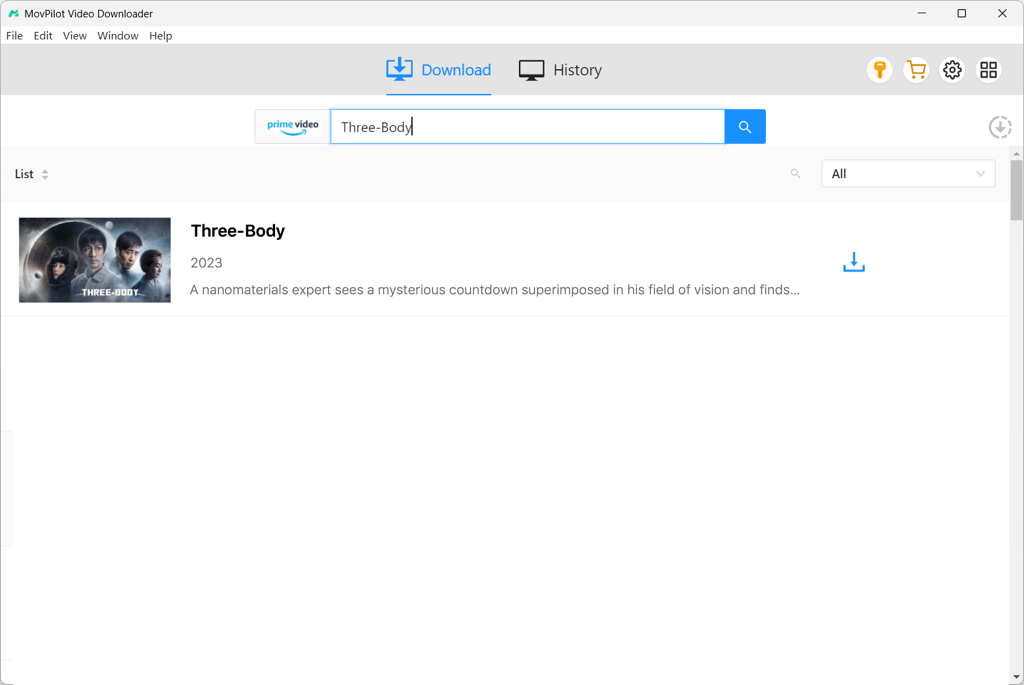
Once the login completes, you will access the interface of the downloader. Directly input the video link or keywords in the search bar to find the videos you want to download. Then the video results will come up in a while.
Step 3. Personalize Downloading Settings
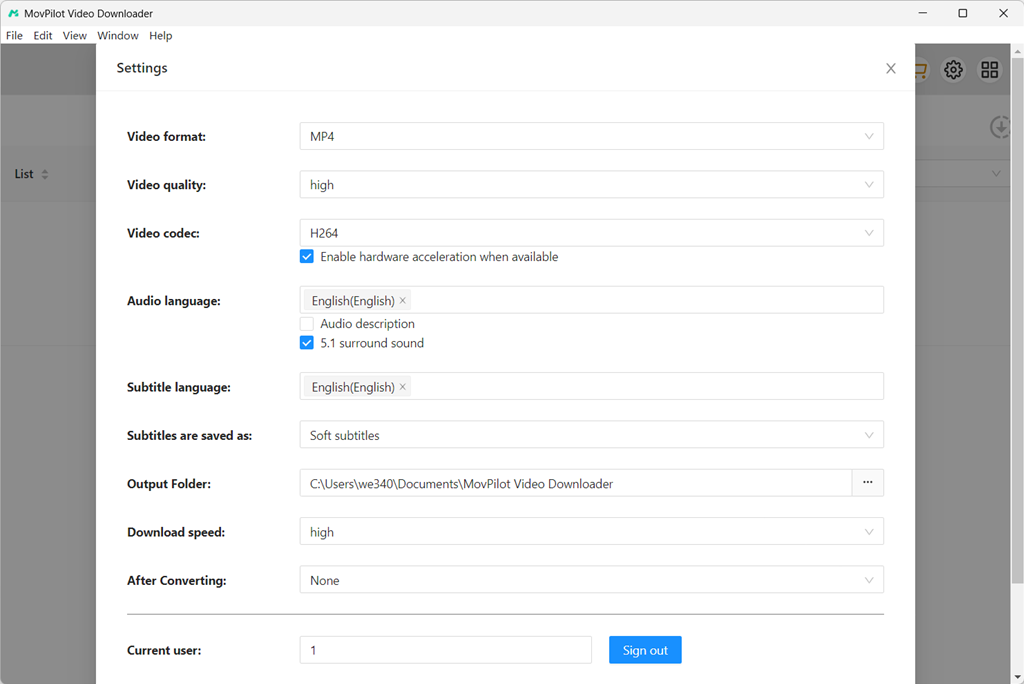
Before proceeding with the video download, you can first tap the Settings button to personalize downloading settings in advance. For instance, you can adjust the Video format as MP4, and other options like Video quality, Video codec, Audio language, and Subtitle language in your preferences.
Step 4. Download Apple TV to MP4
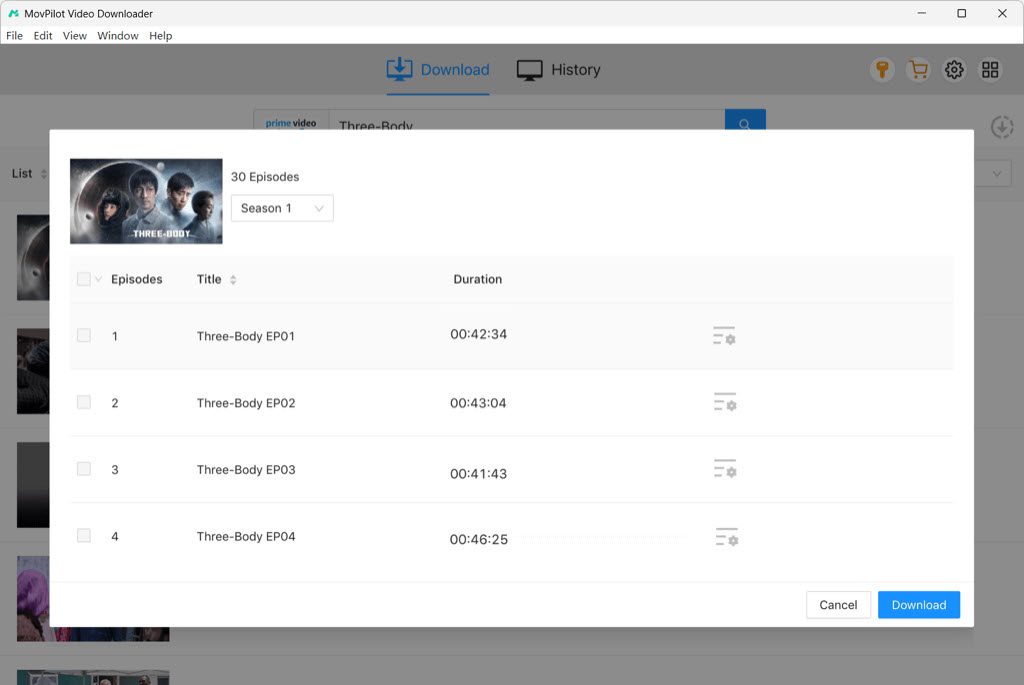
Eventually, simply return to the search result page and tap the download buttons behind the titles you need. You can download Apple TV to MP4 for offline streaming on PC in no time!
FAQs About Watching Apple TV on PC
Why Can’t I Access Apple TV on My Laptop?
If you fail to access Apple TV on your laptop, consider whether you run into the following circumstances and how to fix them:
- Unsupported Region: Apple TV is a geo-restricted service. Verify that your country is supported to access it.
- Browser Issues: Clear Chrome/Firefox cache or disable ad-blockers. According to most users, Safari/Edge often works better to run the Apple TV web player.
- Subscription Expiration: Confirm whether your subscription expires. If yes, renew it, and Apple TV will work again.
- App Errors: If the above problems don’t exist, there may be something wrong with the Apple TV app. You can try reinstalling it to see if you can access the service again.
Can I Watch Apple TV Offline on My Computer?
For sure you can! By installing the official Apple TV app and subscribing to the eligible Apple TV plans, you can use the official download service to play videos offline on PC. Or you can use the PC program, MovPilot Apple TV+ Video Downloader, to download Apple TV to MP4 for local streaming, even without installing the Apple TV app.
Conclusion
To watch Apple TV on PC, you can use the official Apple TV web player or application to access all video resources and enjoy streaming directly (with a membership subscription). Alternatively, downloading Apple TV to MP4 for offline streaming with the assistance of MovPilot Apple TV+ Video Downloader is also a rational option, which can get rid of Apple TV restrictions and enjoy video streaming whenever, wherever you are!