






Have you ever wanted to watch your favorite Apple TV+ movies offline on a non-Apple device – like a Windows PC, Android phone, smart TV, or even from a USB drive – but only to discover they’re locked by Apple’s DRM? You’re not alone. Many users are frustrated that Apple TV+ only allows downloads within its app, and those files can’t be shared, edited, or played on other devices.
That’s why converting Apple TV movies to MP4 has become a growing need. As a widely supported format, MP4 lets you watch your content anytime, anywhere, without limitations. In this guide, we’ll walk you through two practical methods to help you convert Apple TV to MP4, whether through high-quality downloading or screen recording. Read on to find the method that suits you best and start enjoying your Apple TV+ content.

1. Download Apple TV to MP4 1080P with Downloader
If you want to enjoy Apple TV+ movies and shows offline, without expiration, ads, or device restrictions, then using a professional video downloader to convert Apple TV to MP4 is your best option. With videos downloaded to MP4, you can easily build a permanent personal library of Apple Originals and exclusive content, accessible on any device, even without the Apple TV app. One of the most reliable tools for this task is MovPilot Apple TV+ Video Downloader.
MovPilot Apple TV+ Video Downloader is a fast and reliable tool that lets you download Apple TV+ movies and shows as MP4 or MKV files in 1080p without using the Apple TV app. This Apple TV to MP4 converter removes DRM restrictions, allowing permanent offline viewing with no expiration, ads, or device limits.
It retains Dolby 5.1 surround sound, supports multi-language audio and subtitles, and offers various subtitle formats. With hardware acceleration, download speeds are up to 5× faster, and interrupted downloads can resume anytime. Simple to use and 100% secure, MovPilot gives you full control over your Apple TV+ content.
Key Features of MovPilot Apple TV+ Video Downloader:
- Download Without Limits – Saves Apple TV+ movies and shows permanently with no viewing limit, or expiration restrictions.
- High-Quality MP4/MKV Output – Exports videos in MP4 or MKV format with up to 1080P resolution and H.265 encoding for exceptional visual quality.
- Dolby 5.1 Surround Sound Support – Enjoys immersive audio with multi-channel output, including 5.1 surround sound at up to 640 kbps bitrate.
- Flexible Subtitle Options – Allows users to choose from soft subtitles, hard subtitles, or export as external subtitle files for custom playback.
- 5× Faster Download Speeds – Powered by hardware acceleration, downloads are significantly faster than real-time streaming.
Downloading and converting Apple TV movies to MP4 is a breeze with MovPilot Apple TV+ Video Downloader. Follow these simple steps to start enjoying your favorite content offline:
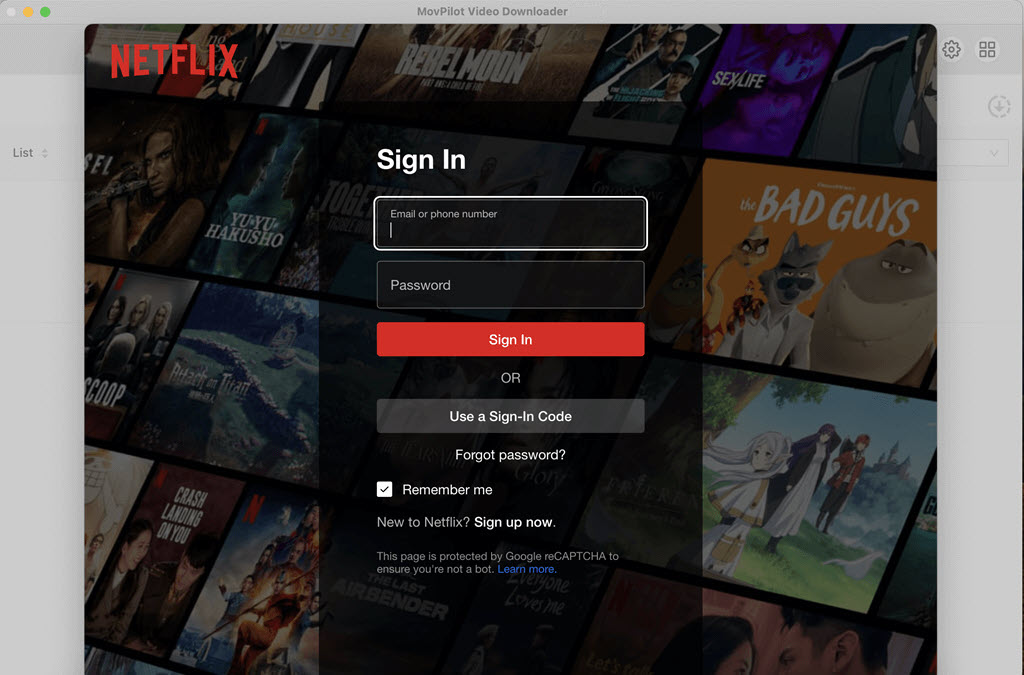
Step 1. Log in to Your Apple TV+ Account
Download and launch MovPilot Apple TV+ Video Downloader on your Windows or Mac device. On the main interface, log in to your Apple TV+ account to access the video library.
Tip:
Check the “Remember Me” option so you won’t need to log in again next time.
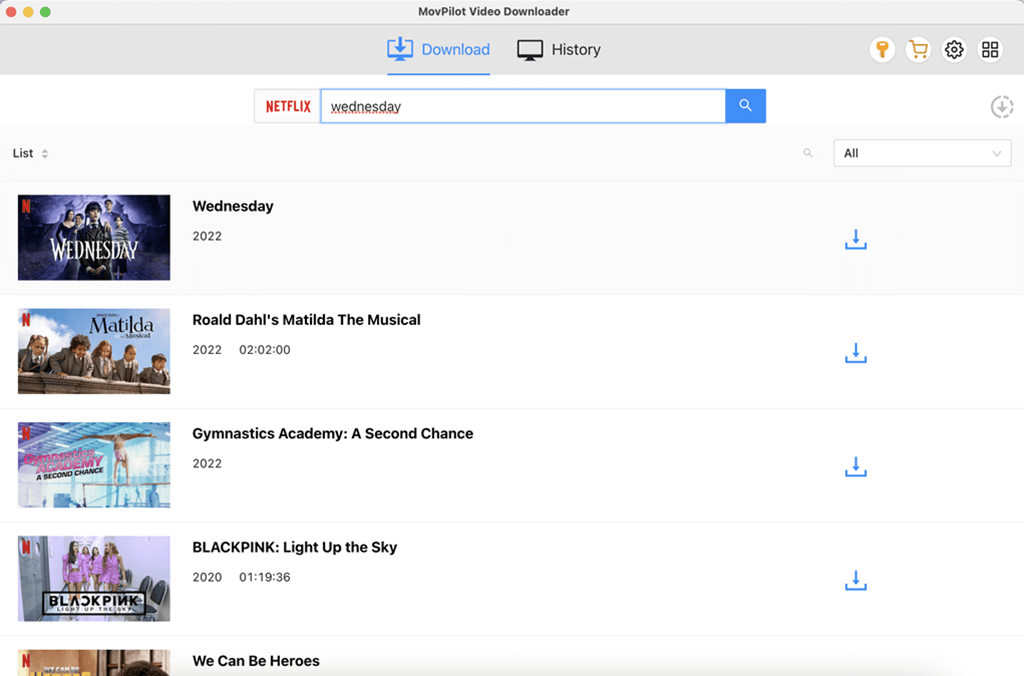
Step 2. Search for the Apple TV+ Video
Enter the title of the show or movie you want to download in the top search bar. You can also paste the direct URL of the video from the Apple TV+ web version. The software will quickly display matched results for you to preview.
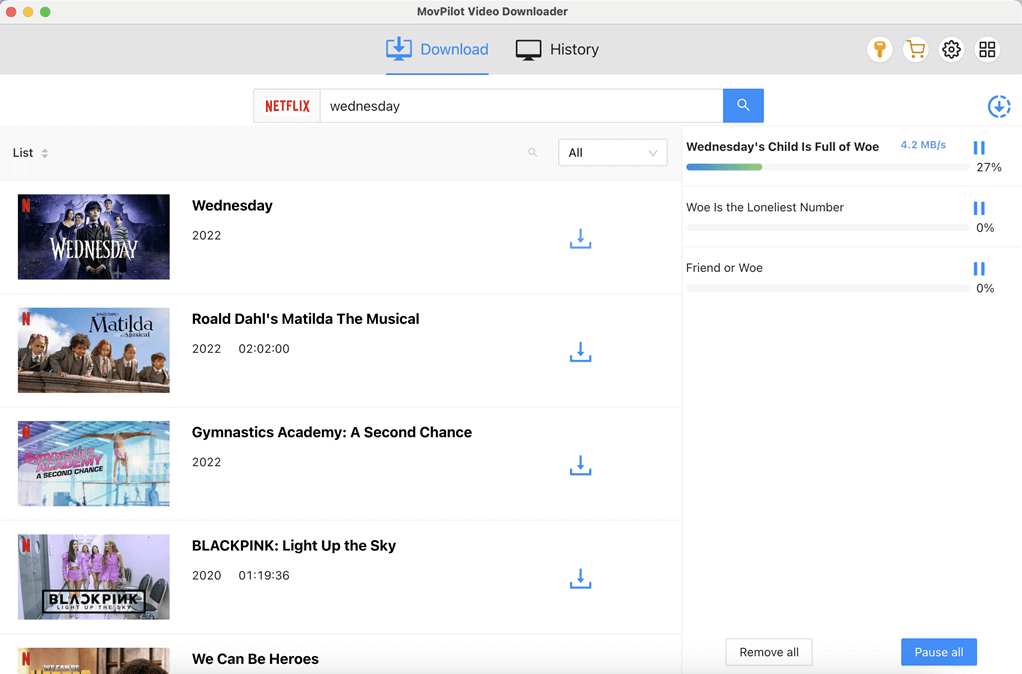
Step 3. Choose Settings and Start Downloading
Click on the video you want to save. For series, select specific episodes or full seasons. Then choose the output format (MP4 or MKV), resolution (up to 1080p), subtitle format, and audio language. Hit the Download button to begin. All files will be saved locally, and you can watch the videos on your computer or other devices — ad-free and without restrictions.
2. Record and Convert Apple TV Movie to MP4
If you’re looking for a free and flexible way to save Apple TV+ movies as MP4 files, screen recording is a practical alternative, especially when you only need to save short clips, trailers, or select scenes for offline use. By playing the video directly in a browser and capturing your screen, you can bypass some download limitations and save Apple TV movies to MP4.
To get the best recording quality, it’s recommended to play the video in Google Chrome with hardware acceleration turned off, which helps avoid black screens during capture. Then, simply record the playback using any screen recorder. Below, we’ll use QuickTime Player on macOS as an example.
Note:
This method has some limitations. Screen recording Apple TV to MP4 is time-consuming, requires uninterrupted playback, and may result in lower video quality compared to using a dedicated downloader.
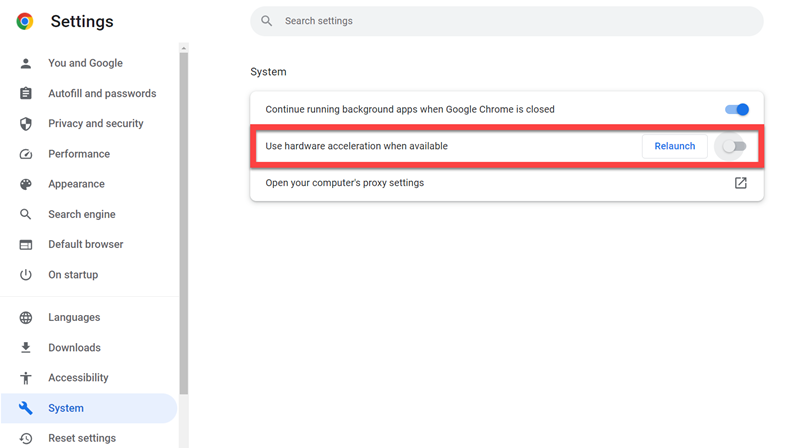
Step 1. Turn Off Hardware Acceleration in Chrome
Open Chrome and go to “Settings”, scroll to “Advanced”, then click “System”. Turn off “Use hardware acceleration when available”, then relaunch your browser. This step is essential to prevent black screen issues caused by DRM rendering when you try to record Apple TV+ content.
Step 2. Open and Play the Apple TV+ Video
Next, visit “tv.apple.com” and sign in with your Apple ID. Navigate to the movie or show you want to save, and begin playback in full-screen mode for the best quality.
Step 3. Set Up QuickTime Player to Record Screen
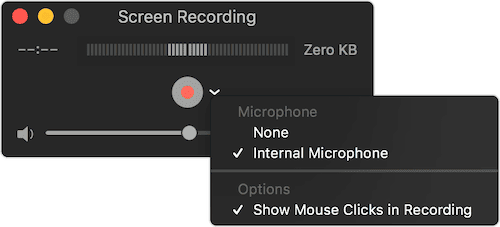
Open QuickTime Player on your Mac, and navigate to “File” > “New Screen Recording”. You’ll see macOS’s Screenshot toolbar appear. Click Options to choose your recording preferences, such as the save location and microphone or audio source settings.
Step 4. Begin Recording the Video
Click “Record” on the Screenshot toolbar to start capturing your screen. To record full-screen, click anywhere on the screen. Immediately resume playing the Apple TV+ video to capture the entire content smoothly.
Step 4. Save and Convert the Recording to MP4
When the playback finishes, click the “Stop” button in the menu bar. Your screen recording will be automatically saved as a .mov file, which you can later export to MP4 using QuickTime’s “Export As” option or convert using a free tool like HandBrake.
FAQs About Apple TV MP4
How to Play an MP4 File on Apple TV?
You can easily play MP4 files on any Apple TV model using AirPlay. First, ensure your Apple TV and your Mac, iPhone, or iPad are connected to the same Wi-Fi network. Open the MP4 file on your Mac or iOS device, then tap the AirPlay icon (or use Screen Mirroring from Control Center). Select your Apple TV from the list, and your MP4 video will instantly play on your TV screen.
Can I Convert Downloaded Movies from Apple TV to MP4?
No, movies downloaded through the Apple TV+ app are protected by DRM and cannot be directly converted to MP4. These files are encrypted and can only be played within the Apple ecosystem.
However, third-party tools like MovPilot Apple TV+ Video Downloader can bypass DRM and convert Apple TV movies to MP4 for personal use. Alternatively, you can use screen recording as a workaround, though it requires real-time playback and often results in lower video quality.
Conclusion
In this guide, we shared two practical ways to convert Apple TV movies to MP4: using a professional Apple TV to MP4 converter and recording the screen manually. While screen recording is free and flexible, it’s time-consuming and may lower video quality.
For a faster, high-quality solution, we recommend MovPilot Apple TV+ Video Downloader, an efficient tool that downloads Apple TV+ videos in MP4 at 1080p with original audio and subtitles. Whether for offline watching or personal archiving, it’s the most reliable way to save your favorite content.