






How to Register
Download Apple TV+ Shows to MP4/MKV
How to Preset Output Video Settings
FAQs
How to Register MovPilot Apple TV+ Video Downloader?
If you want to download full-length Apple TV+ videos without limitations, it’s essential to activate the full version of MovPilot Apple TV+ Video Downloader. The registration process is simple and only takes a few steps. Here’s how to register the software:
Step 1. Launch the Program
First, open the MovPilot Apple TV+ Video Downloader on your computer. If you haven’t installed it yet, download the latest version from the official website and complete the installation. When launched, sign in with your Apple TV+ account.
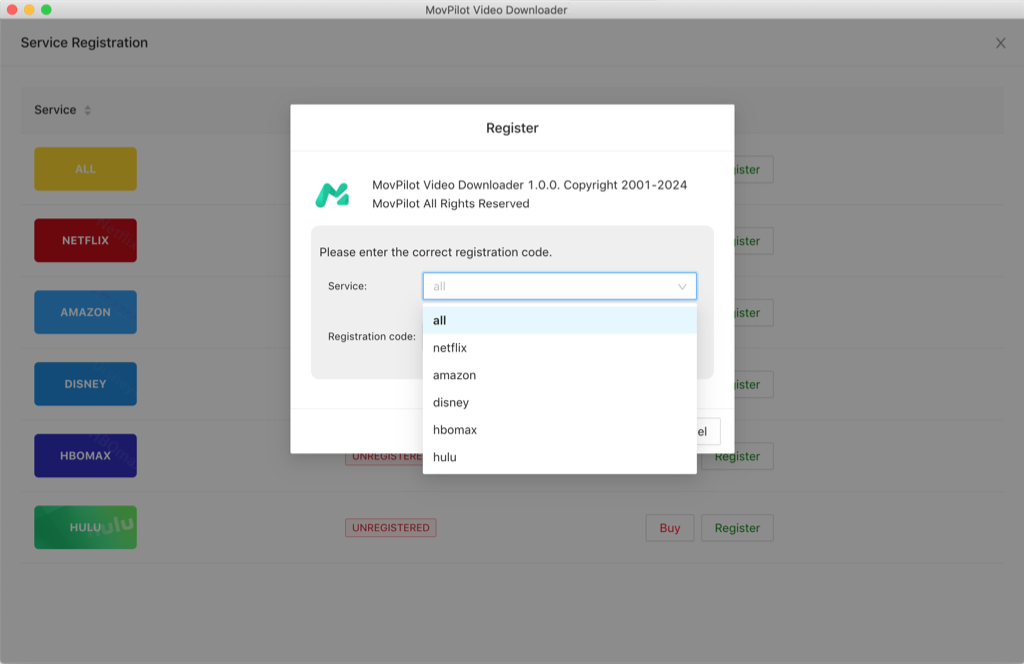
Step 2. Enter Your License Information
In the registration window, you will be asked to enter two key pieces of information:
- Licensed Email Address: This is the email address you used when purchasing the software.
- Registration Code: You should have received this unique code via email after completing your purchase.
Step 3. Complete Registration
After filling in the required fields, click the “Register” button to activate the software. Once the registration is successful, you will see a confirmation message, and the limitations of the free trial version, such as partial downloads or watermarks, will be removed.
How to Download Apple TV+ Shows to MP4/MKV
Once you’ve registered the software, you’re ready to begin downloading your favorite Apple TV+ shows and movies to MP4 or MKV formats. MovPilot Apple TV+ Video Downloader offers a clean, intuitive interface that guides you through the process quickly and easily, even if you’ve never used similar software before. Here’s a detailed step-by-step tutorial:
Step 1. Log in to Apple TV+
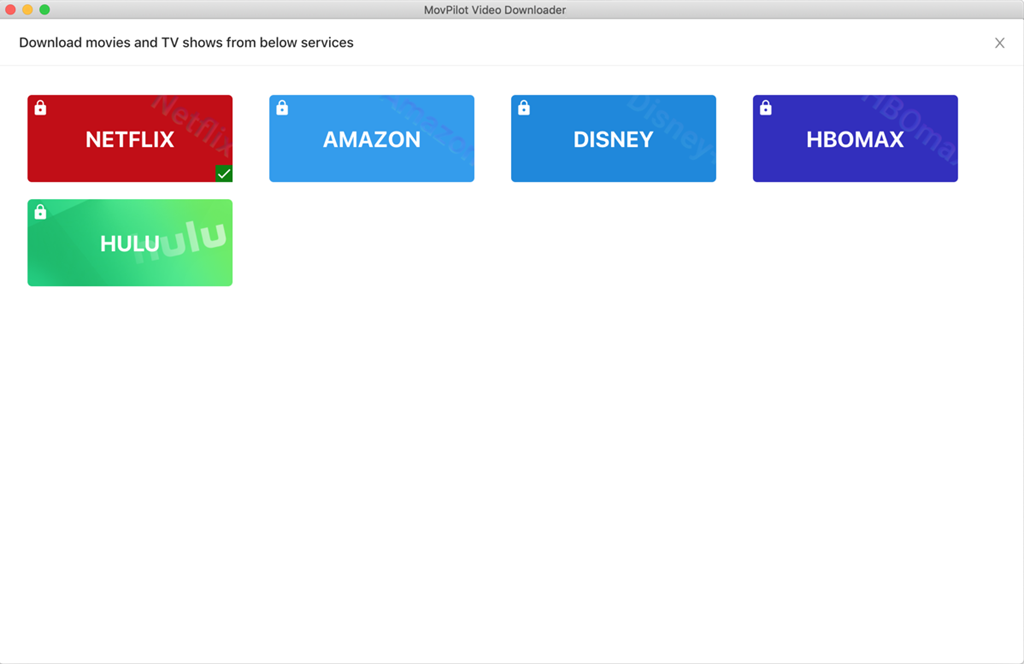
First, download and install MovPilot All-in-One Video Downloader from the official website. Once installed, open the program, and enter Apple TV+.
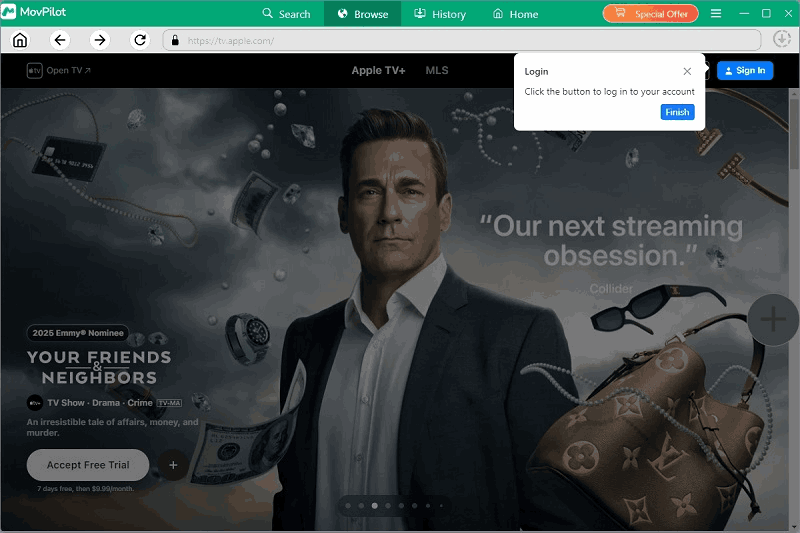
In the “Browse” section, log in using your Netflix account credentials.
Tip: You can also go to the “Search” section to search for videos with title or URL.
Step 2. Search for Apple TV+ Show
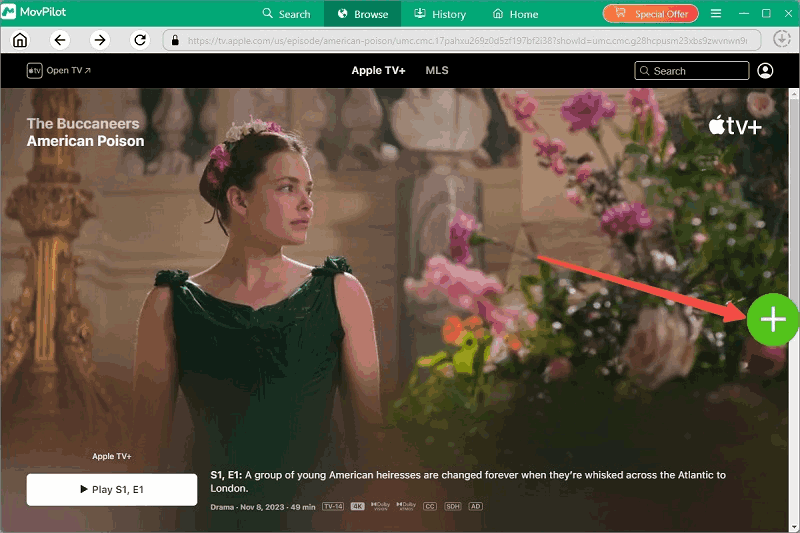
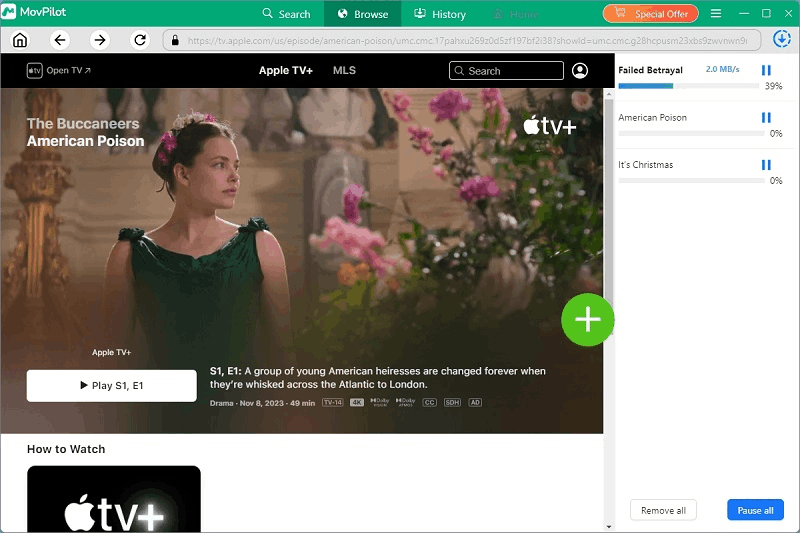
After logging in, use the search bar at the top of the interface to find the video you want to download. You can enter the title of the movie/show directly, and MovPilot will quickly locate and display the relevant video content for you to preview and select. Then you should click the plus button at the bottom right corner.
Step 3. Download Apple TV+ Video
Once the title appears, for TV shows or series, the software will prompt you to choose specific episodes or entire seasons before downloading.
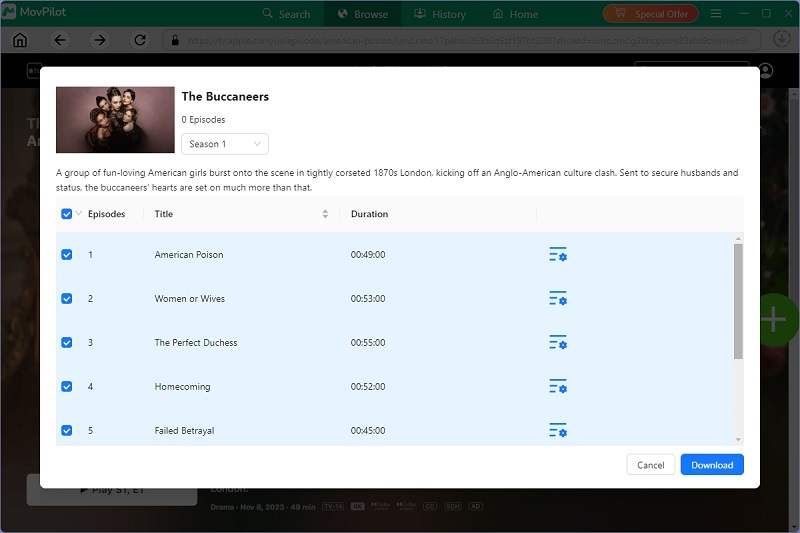
For movies, simply click the Download button to start saving it to your computer. By default, downloaded videos are saved in MP4 format with the original audio and subtitle languages embedded.
How to Preset Output Video Settings
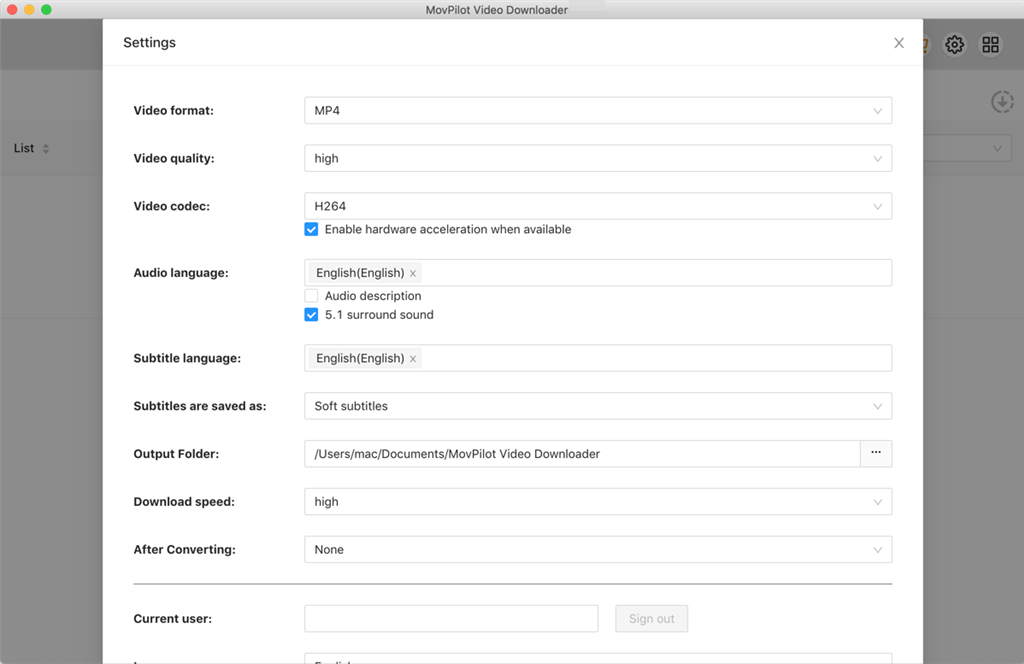
To ensure every download meets your quality and playback preferences, MovPilot Apple TV+ Video Downloader offers flexible output settings that you can configure before downloading any video. These settings allow you to customize the video format, resolution, codec, subtitle style, and audio language, all from one central place.
To access these options, simply click the gear icon in the top-right corner of the main interface to open the Settings menu, and then you’ll find the following adjustable preferences:
Video Format
Under the “Format” section, you can choose to save videos in either MP4 or MKV. Just select your preferred format from the dropdown menu. This format will apply to all downloaded videos unless changed individually later.
Video Quality
In the “Resolution” field, choose your desired video quality from options like 1080p, 720p, or 480p. This determines the clarity and file size of your downloaded content. Select the resolution that suits your screen and storage needs.
Video Codec
You can set the encoding method by selecting H.264 or H.265 under the “Codec” option. H.265 offers more efficient compression, while H.264 is widely supported by all players. Simply pick one from the dropdown based on your playback environment.
Audio Language
Under the “Audio Language” setting, tick one or more languages you’d like the downloaded videos to include. MovPilot will automatically detect and download the matching audio tracks if they are available for that title.
Subtitle Language
You can also select preferred subtitle languages. Check one or multiple languages, and the tool will retain all selected subtitles when available. This is especially useful for bilingual users or language learners.
Subtitle Type
Choose how subtitles are saved by selecting from:
- Soft Subtitles (can be toggled during playback),
- Hard Subtitles (burned into the video),
- External Subtitles (saved as a separate file). This can be set globally here or individually before each download.
Download Speed Options
MovPilot supports hardware acceleration and batch downloading. You can select download speeds here to increase download speed, especially useful when downloading large files or full seasons.
FAQs on MovPilot Apple TV+ Video Downloader
What Subtitle Languages Can I Download?
MovPilot Apple TV+ Video Downloader supports downloading subtitles in all the languages officially provided by Apple TV+ for each specific title. This typically includes major languages such as English, Spanish, French, German, Japanese, and more, depending on the region and availability.
You can select one or more preferred subtitle languages in the Settings panel before downloading. If the selected language is available for the video, it will be automatically included in the download.
Can MovPilot Apple TV+ Video Downloader Download Multiple Episodes at Once?
Yes, it can. MovPilot Apple TV+ Video Downloader supports batch downloading of multiple episodes or even full seasons at once. When you search for a TV series and click the Download button, a window will appear showing all available episodes. You can select individual episodes or check entire seasons to queue everything at once.
This feature is especially useful if you’re preparing for offline binge-watching or need to back up entire shows. The downloader will process all selected episodes consecutively, and you can track progress in the download queue.