






كيفية التسجيل
Download YouTube Videos to MP4/MKV
الأسئلة الشائعة
How to Register MovPilot YouTube Video Downloader
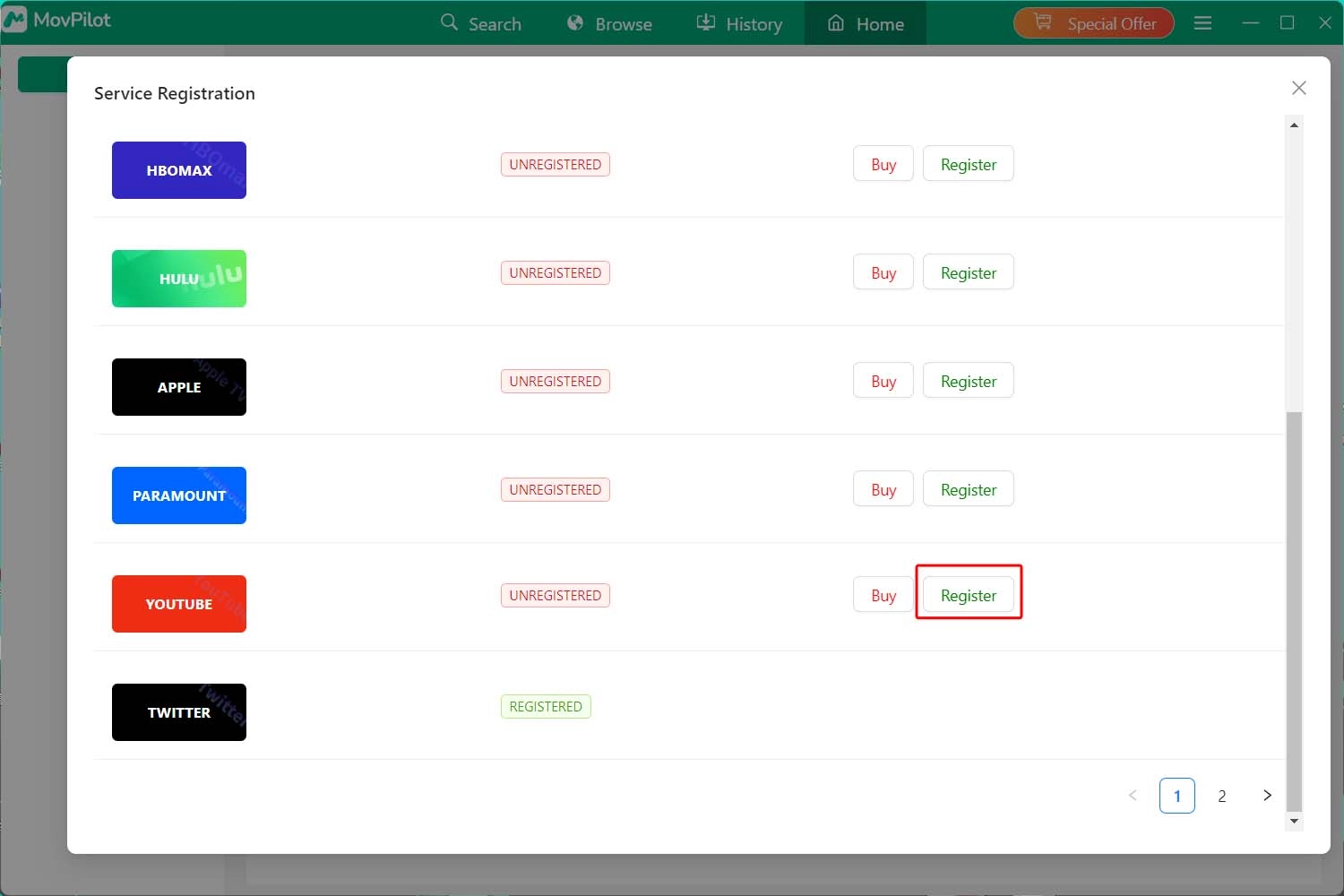
MovPilot YouTube Video Downloader can be used without registration, but the free trial comes with usage limitations. To unlock full functionality and download complete YouTube videos without restrictions, you need to register the software with a valid license.
Step 1. Launch MovPilot YouTube Video Downloader
After installing MovPilot YouTube Video Downloader on your computer, launch the program.
الخطوة 2. انسخ رمز التسجيل الخاص بك
Open the email you received after purchasing MovPilot. Copy the registration code provided in the message. The code consists of a combination of letters and numbers.
Step 3. Register MovPilot YouTube Video Downloader
Click the key icon in the top-right corner of the MovPilot interface. Paste your registration code into the registration window and click Register. Once activated, you can download YouTube videos in full length without limitations.
How to Download YouTube Videos with MovPilot
MovPilot YouTube Video Downloader allows you to download individual YouTube videos as well as entire playlists. Downloaded videos are saved in MP4 format with original video quality, audio tracks, and subtitles preserved when available.
Step 1. Launch MovPilot YouTube Video Downloader
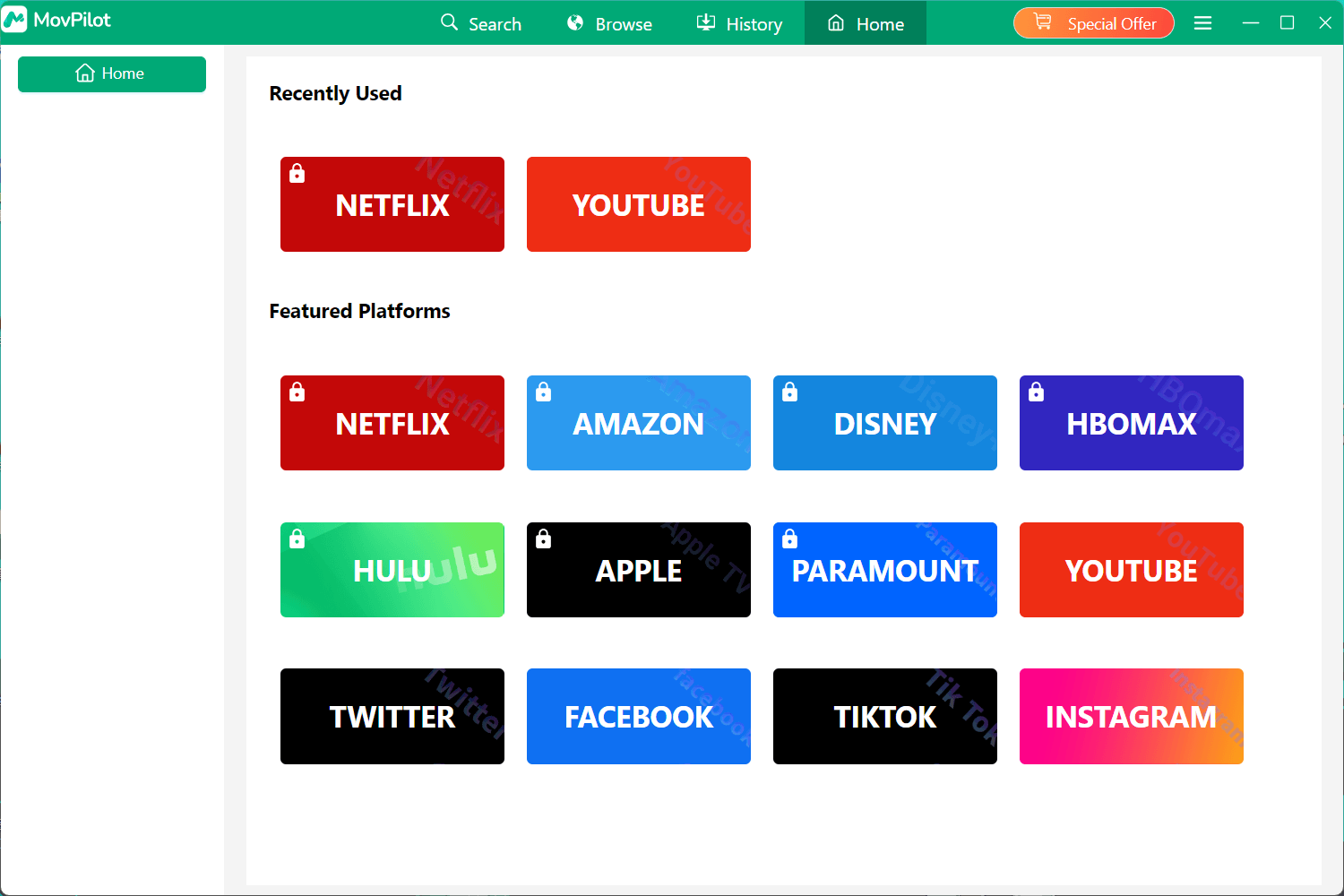
Open MovPilot YouTube Video Downloader on your Windows or macOS computer. The built-in YouTube browser will load automatically.
Step 2. Search for YouTube Videos or Playlists
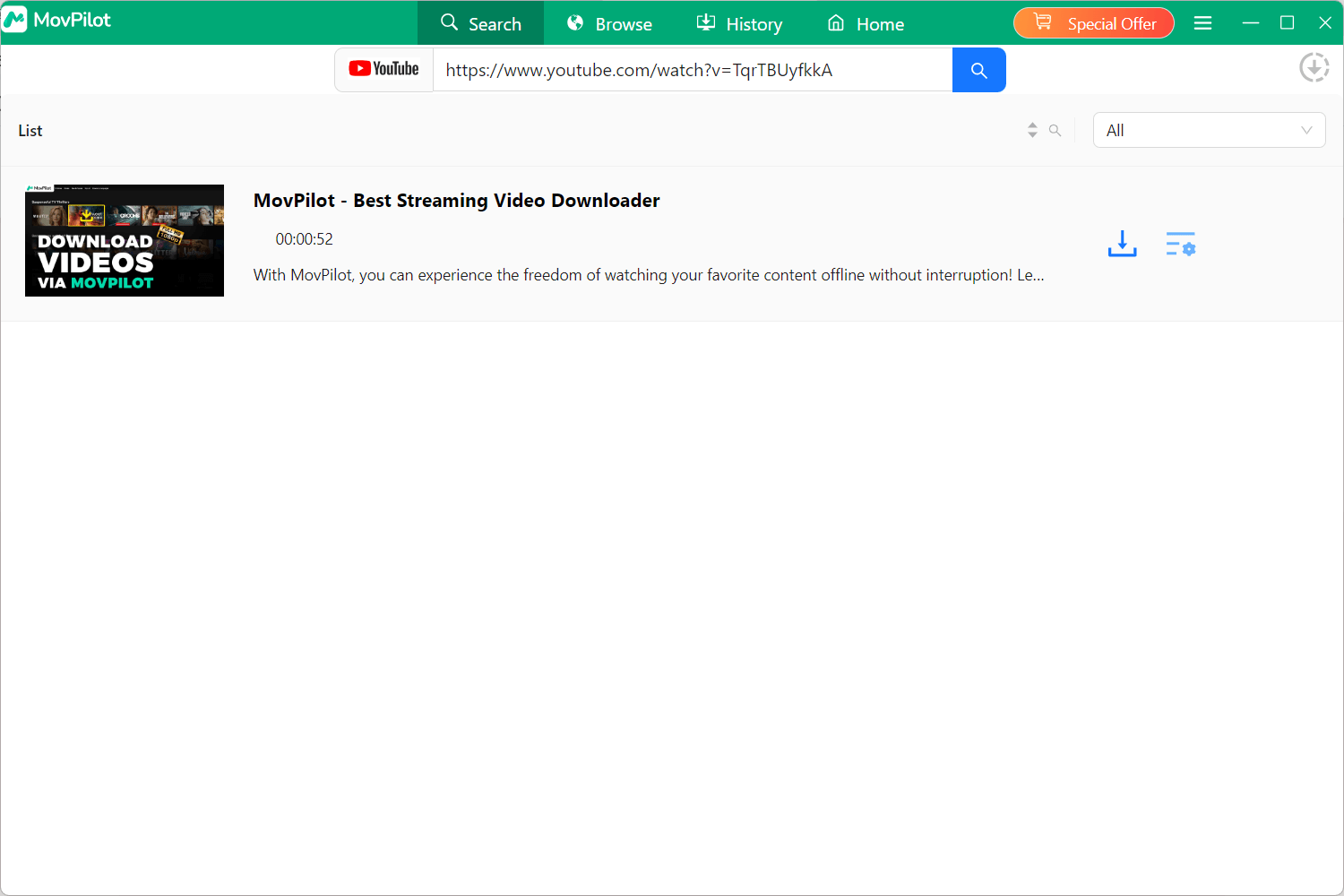
You can search for YouTube content in two ways. Enter keywords directly into the search bar to find videos within the built-in browser, or copy a YouTube video or playlist URL and paste it into MovPilot to locate the content instantly.
Step 3. Download YouTube Videos
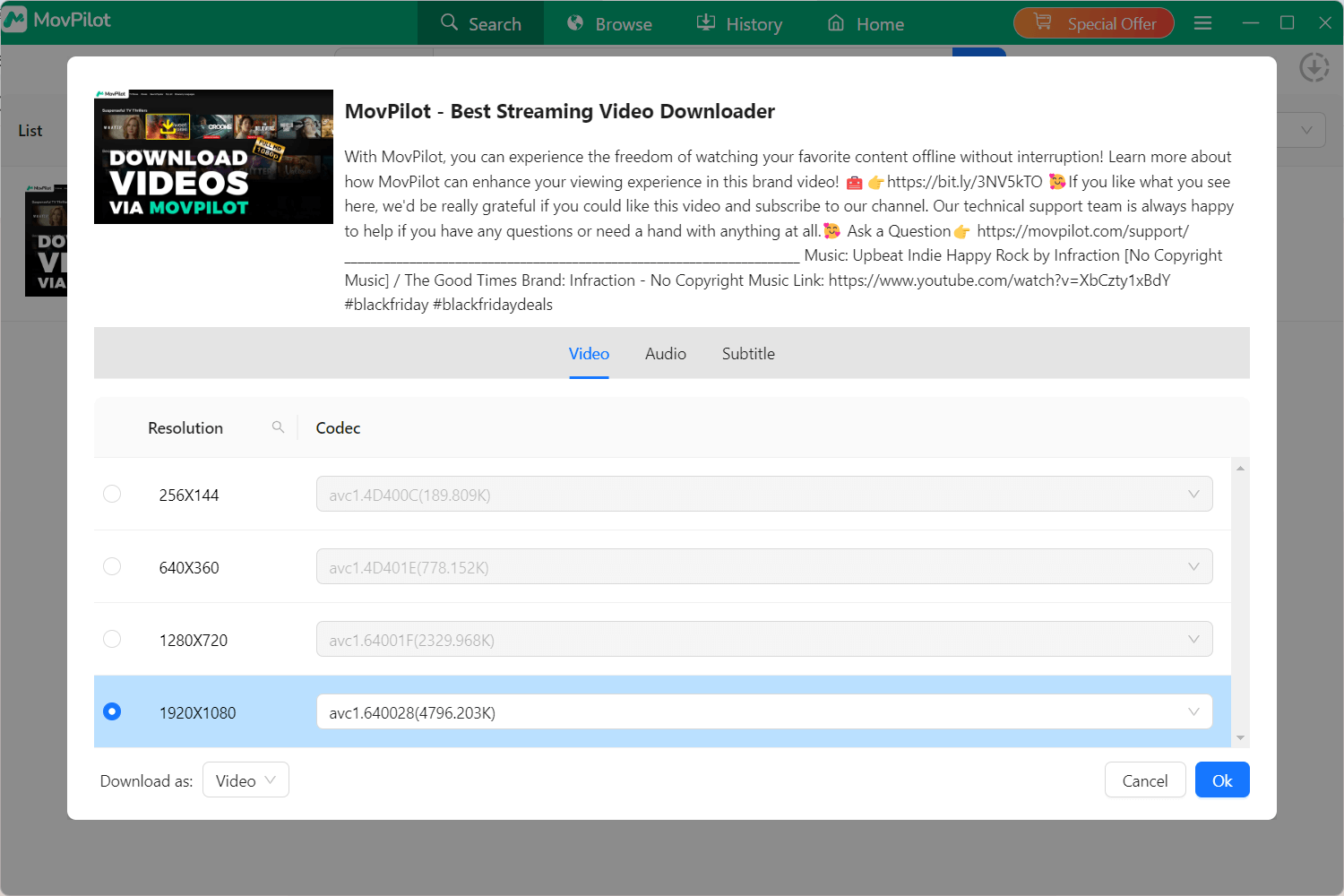
Click the settings button, and you can adjust the quality/audio/subtitle settings. If you are downloading a playlist, MovPilot will display all available videos and allow you to select the items you want to download. Select the item you need.
Step 4. Download YouTube Videos
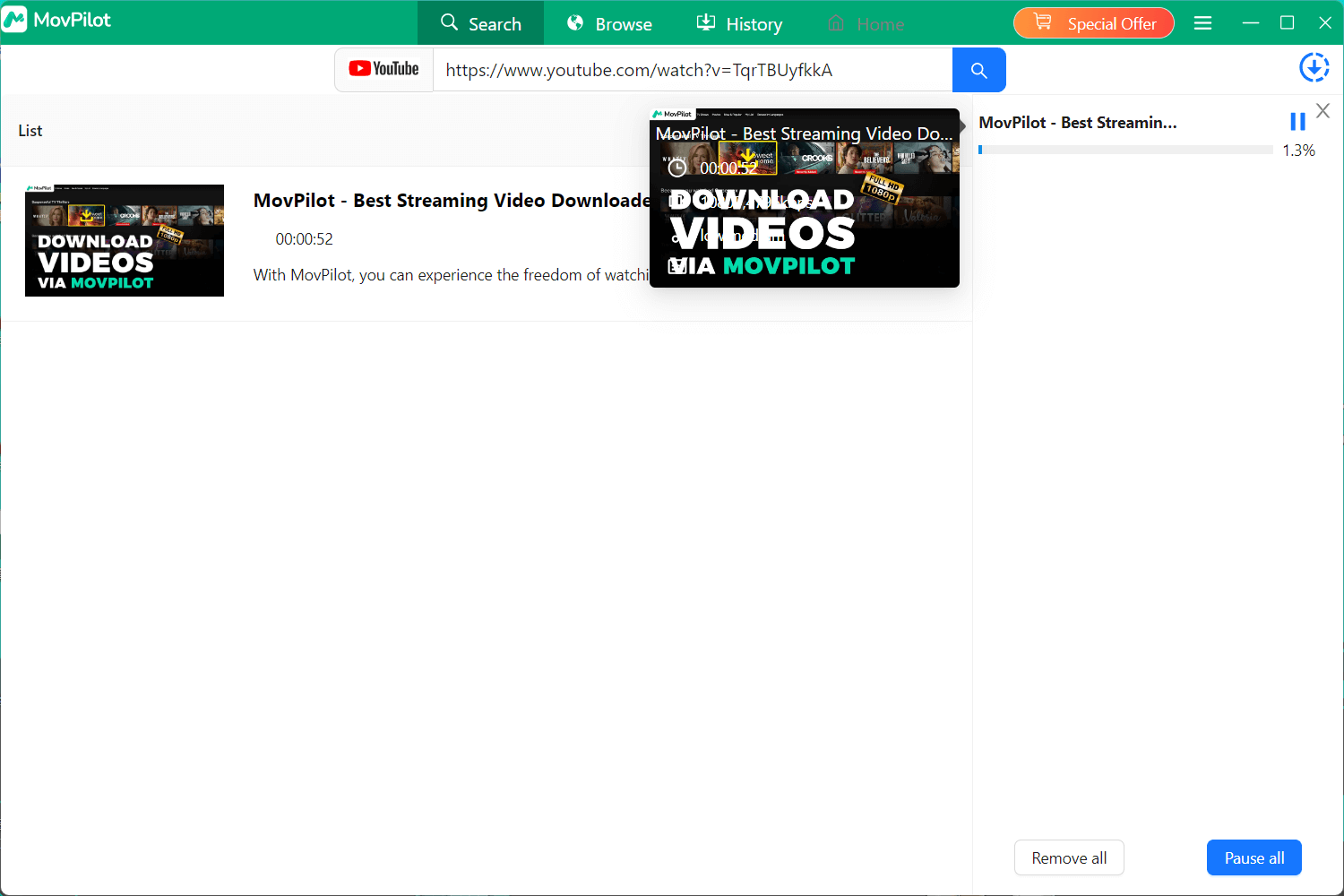
Click the OK button to start downloading YouTube video. By default, videos are saved in MP4 format.
Optional: Customize Output Settings (Video, Audio, and Subtitles)
MovPilot offers flexible output settings to match different download needs. You can either apply global settings to all downloads or customize settings for specific videos.
Option 1. Set Output Preferences for All Videos
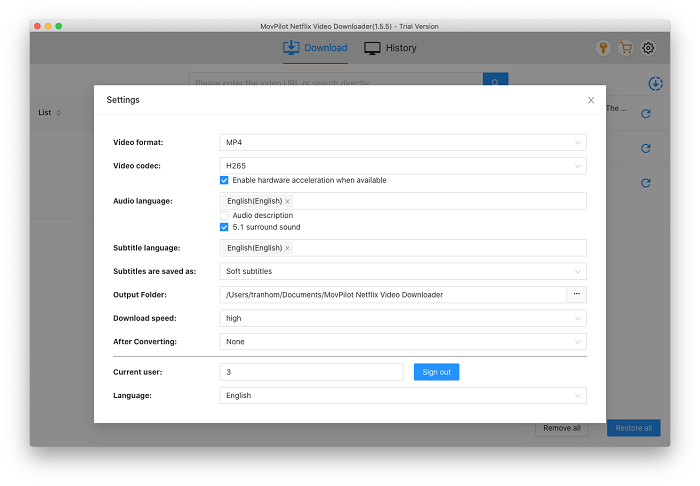
Click the hamburger icon in the top-right corner to open إعدادات.
جودة الفيديو: You can choose the preferred output resolution based on the original YouTube source, including 720p, 1080p, 4K, or 8K (if available).
Video Encoding: Select a suitable video codec to balance file size and playback compatibility.
Audio Track: MovPilot preserves the original audio track included in the YouTube video. If multiple audio languages are available, you can choose which one to keep before downloading.
Subtitles: You can choose how subtitles are saved when available. MovPilot supports soft subtitles, hardcoded subtitles, and external subtitle files.
These settings will apply to all YouTube videos downloaded unless you change them later.
Option 2. Customize Settings for a Single Video
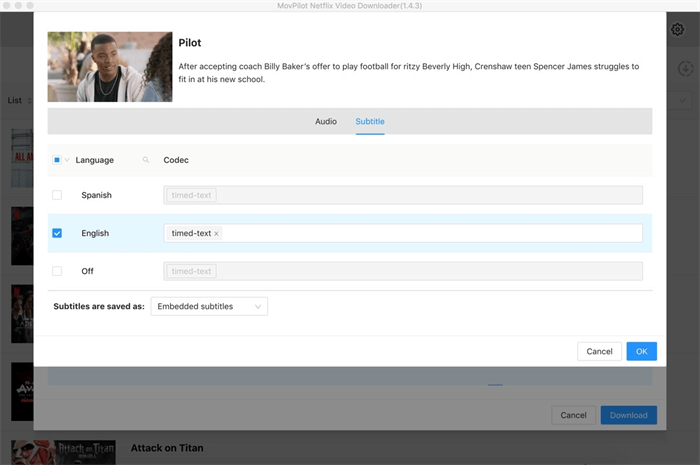
After searching for a YouTube video or playlist, move your mouse over the video title and click the settings icon.
For playlist downloads, the settings icon will appear after you click the main download button. You can then adjust output options for individual videos before adding them to the download queue.
Here, you can select:
- Video resolution for that specific video
- Audio language (if multiple tracks are available)
- Subtitle type and language
This option is useful when you want different output settings for specific videos.
FAQs on MovPilot YouTube Video Downloader
Q1. What’s the Difference Between Hard Subtitles, Soft Subtitles, and External Subtitles?
- Hard subtitles are permanently embedded into the video and cannot be turned off or edited.
- Soft subtitles are embedded within the video file but can be turned on or off and switched between languages during playback.
- الترجمة الخارجية: are saved as separate subtitle files, usually in SRT format.
If you don’t need separate subtitle files, soft subtitles are generally recommended for flexibility.
Q2. Can I Select Multiple Languages for Hard Subtitles?
No. Hard subtitles support only one language per video because the subtitles are permanently merged into the video image.
Q3. What Is the Quality of the Downloaded YouTube Videos?
MovPilot downloads YouTube videos in the highest quality available from the original source. Supported resolutions include 720p, 1080p, 4K, and up to 8K, depending on the original video.
Q4. How Can I Download YouTube Videos Faster?
To improve download performance, make sure hardware acceleration is enabled in MovPilot’s settings. Choosing an efficient video encoding option can also help reduce file size while maintaining quality, which may shorten download time, especially for high-resolution videos.